Scenes & Personalise
Scenes are a core aspect of the Camo Studio workflow, allowing for combinations of overlays, camera settings, adjustments and effects to be configured and saved for whenever they’re needed. You’ll find your scenes in the right sidebar, ready to use at a moments notice, and in the Gallery – where you can organise and categories them however you wish.
The app comes with a set of default scenes suitable for a variety of uses, such as for work meetings, testing out your first stream, or making a quick recording. Many of these include overlays that can be customised with your information via the Personalise feature; simply input details like your name, location and logo, and your scenes will automatically update to present them.

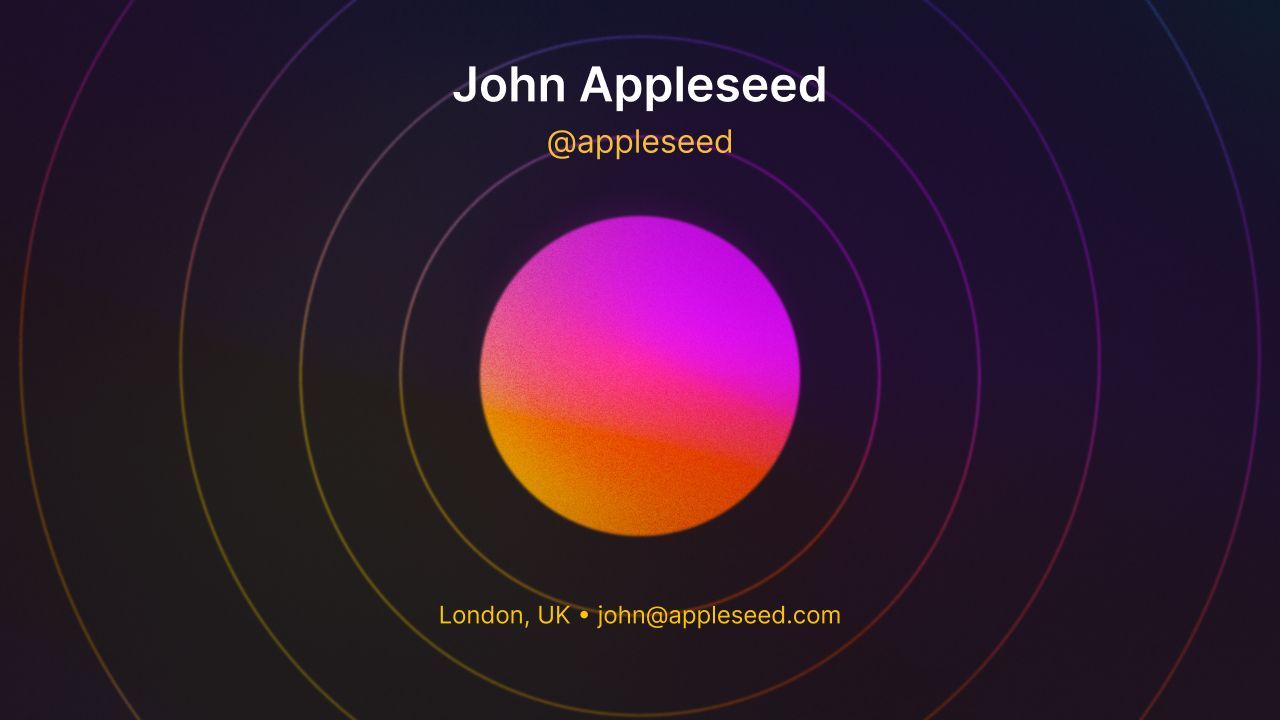
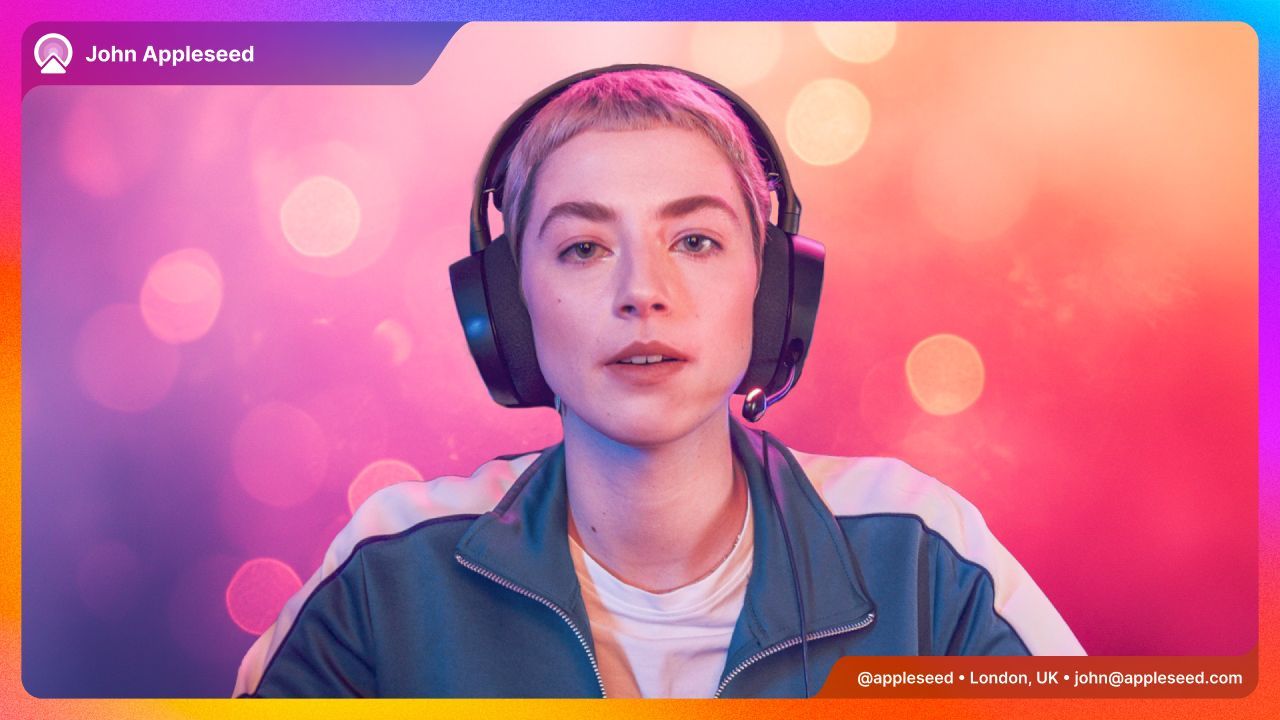
You can modify scenes via the in-app Scene Editor, in case you'd like to make some adjustments to the ones provided, or create your own set from scratch.
Personalise
Personalise is the fastest way to make your video yours. The details you use will automatically populate the corresponding values in your scenes, such as including your name or company logo, giving your audience helpful information and helping you look more professional.
You’ll be prompted to set up Personalise as part of onboarding when you first launch the app, and can edit your details at any time via the Personalise pane – which is located in Settings on Windows, and in the Scene Gallery on macOS.
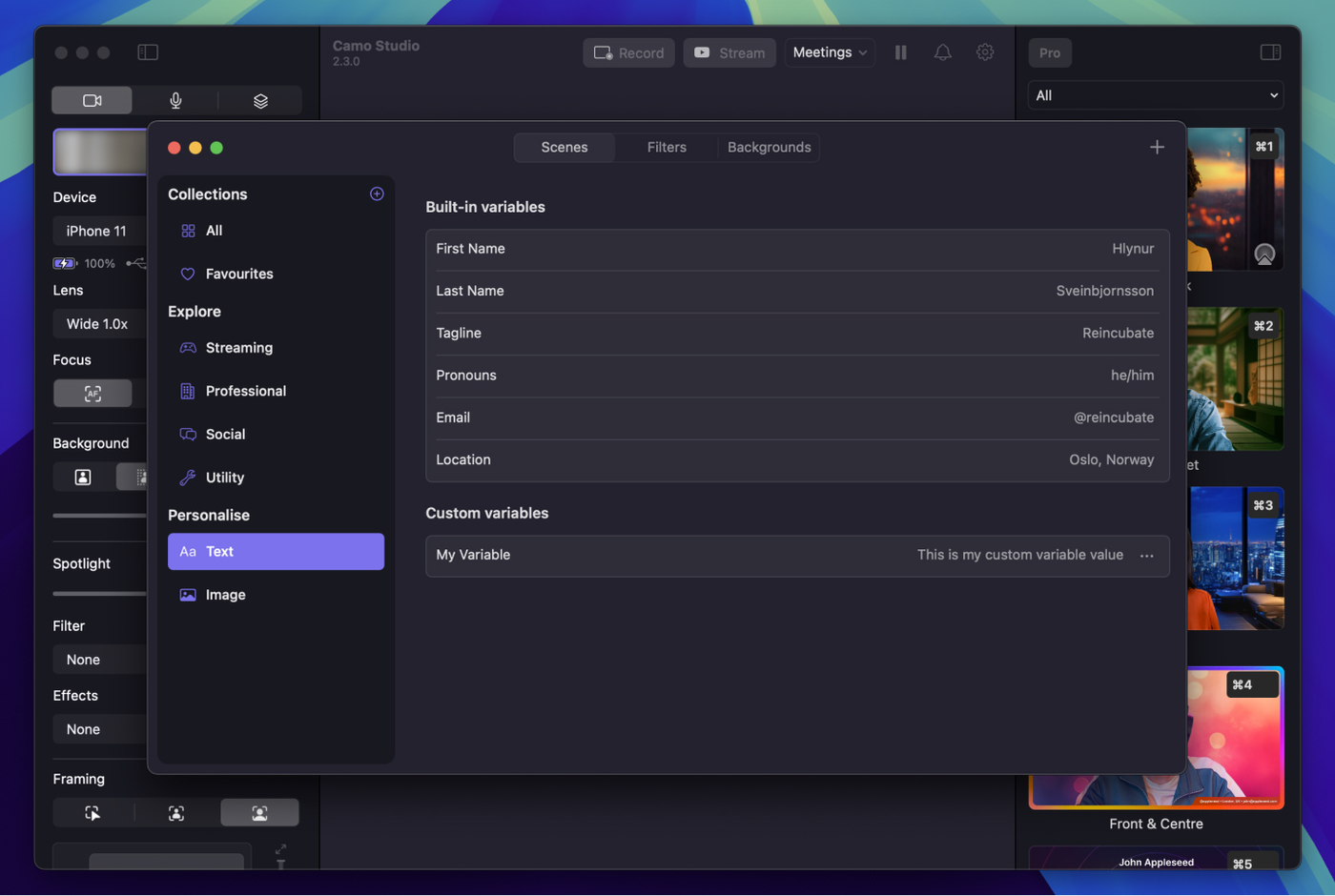
To use a Personalise variable in a scene, reference the variable name in curly braces and removing spaces. For example, the value for "First Name" can be used to populate a text layer in your scene like so: {{firstName}}; and if you’d like your last name too: {{firstName}} {{lastName}}
If you’d like to add even more information, you can extend the set of default Personalise variables with custom variables. Just give your variable a name, input a value and it’s ready to be used in a scene. For example, "My variable" can be referenced in a scene like so: {{myvariable}}
The Scene Gallery
At the top of the Scenes panel you’ll find a dropdown to jump between different scene collections, including your favourites and any others you’ve created, and open the Scene Gallery. The gallery helps you organise your scenes and collections, create new scenes by duplicating an existing one or by starting from scratch, and discover scenes bundled with the app via the Explore section.
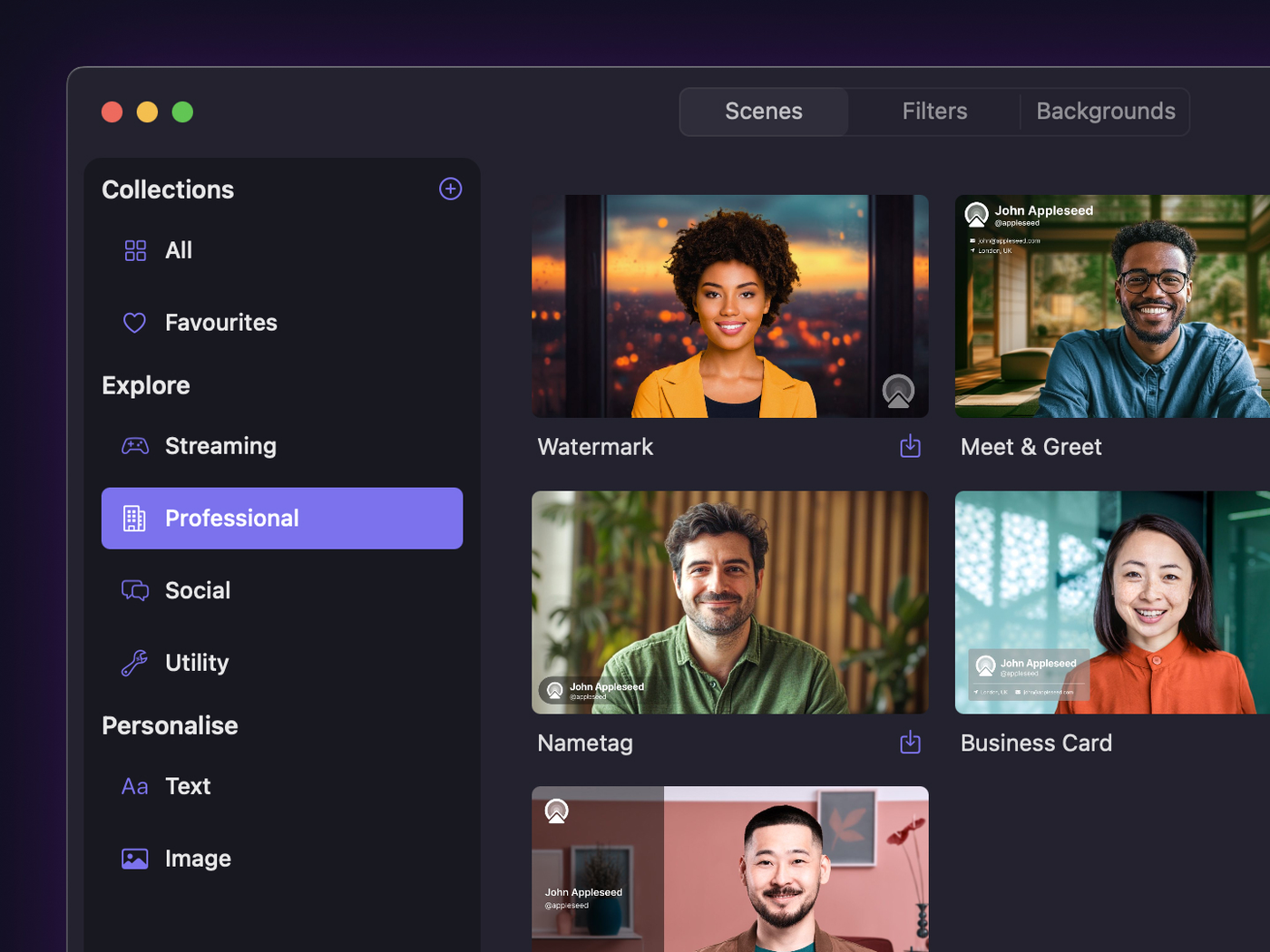
The Explore section comes loaded with a few different kinds of scenes, ranging from more informative, professionally minded layouts where information and clarity is key, to more expressive and colourful designs for those looking to add a twist to their video presence. There are also a few utility scenes, which can come in handy as alignments aides or for more subtle effects, such as Vignette.