Using Elgato's Stream Deck with Camo Studio for iPad
Whether you own a Neo, Stream Deck+ or other model, you can connect your Stream Deck to Camo and take advantage of instant key layouts covering every part of your Camo workflow, from creating and switching scenes to adjusting audio, switching video sources, going live and more. Elgato’s minimum requirements for Stream Deck integration are iPadOS 17 running on an M1 chip or newer.
Enabling the Stream Deck integration
Connecting a Stream Deck to your iPad
Connect your Stream Deck to your iPad in exactly the same way as you would a camera or microphone - either directly to its USB-C port, or if you're connecting multiple devices, via a USB hub. For best results, use one of the powered models we recommend. Once your Stream Deck is connected and ready to go, Camo will configure it automatically with the most useful commands for each part of the video workflow, from building a scene to recording or going live.
Camo keys
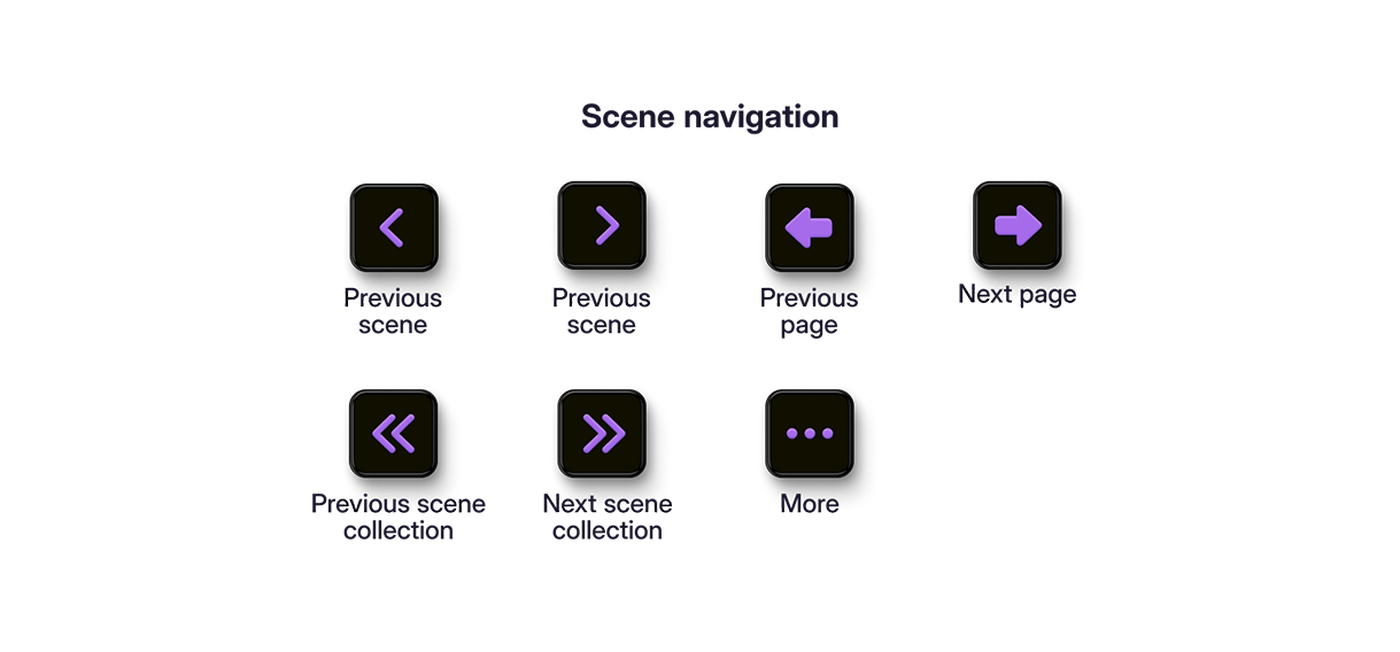
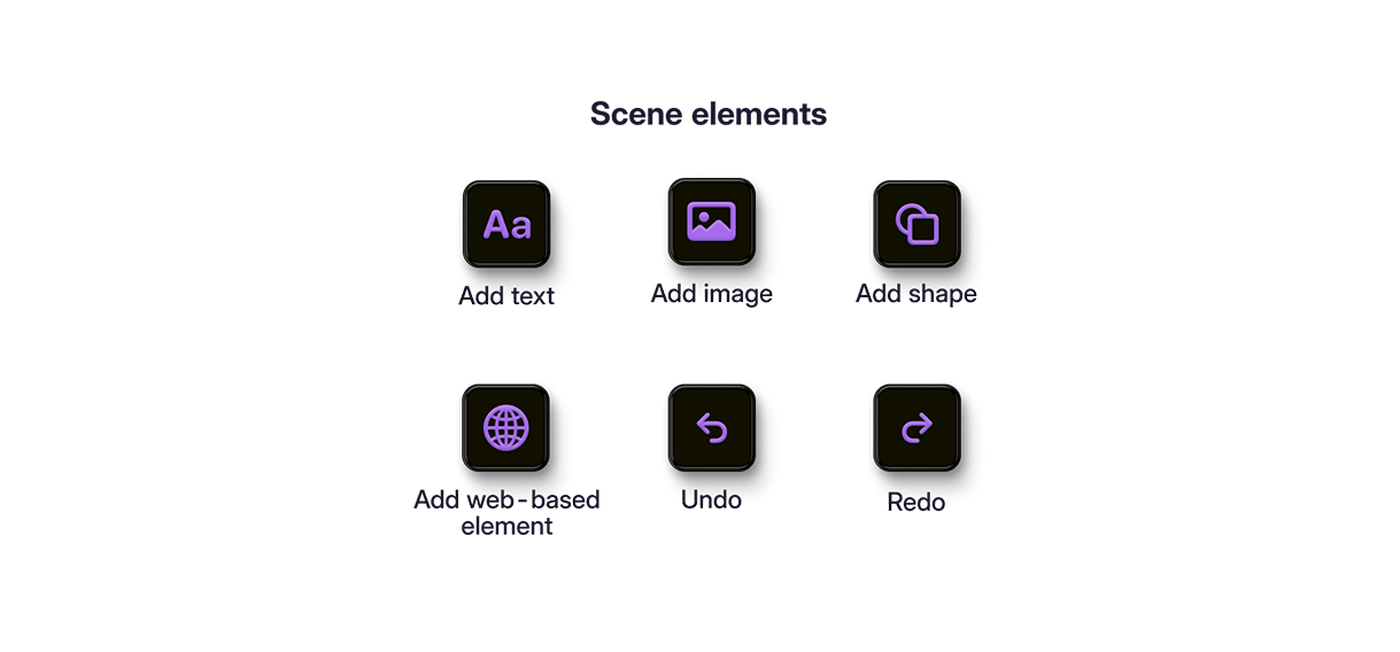
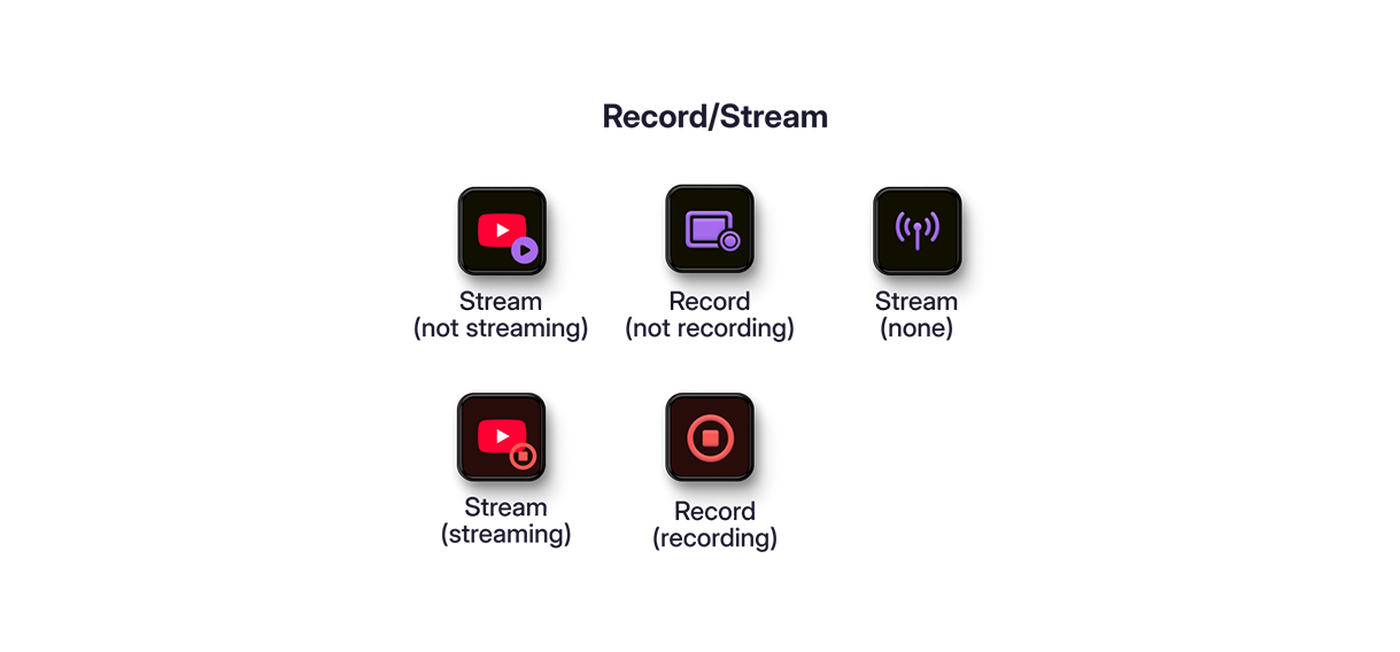
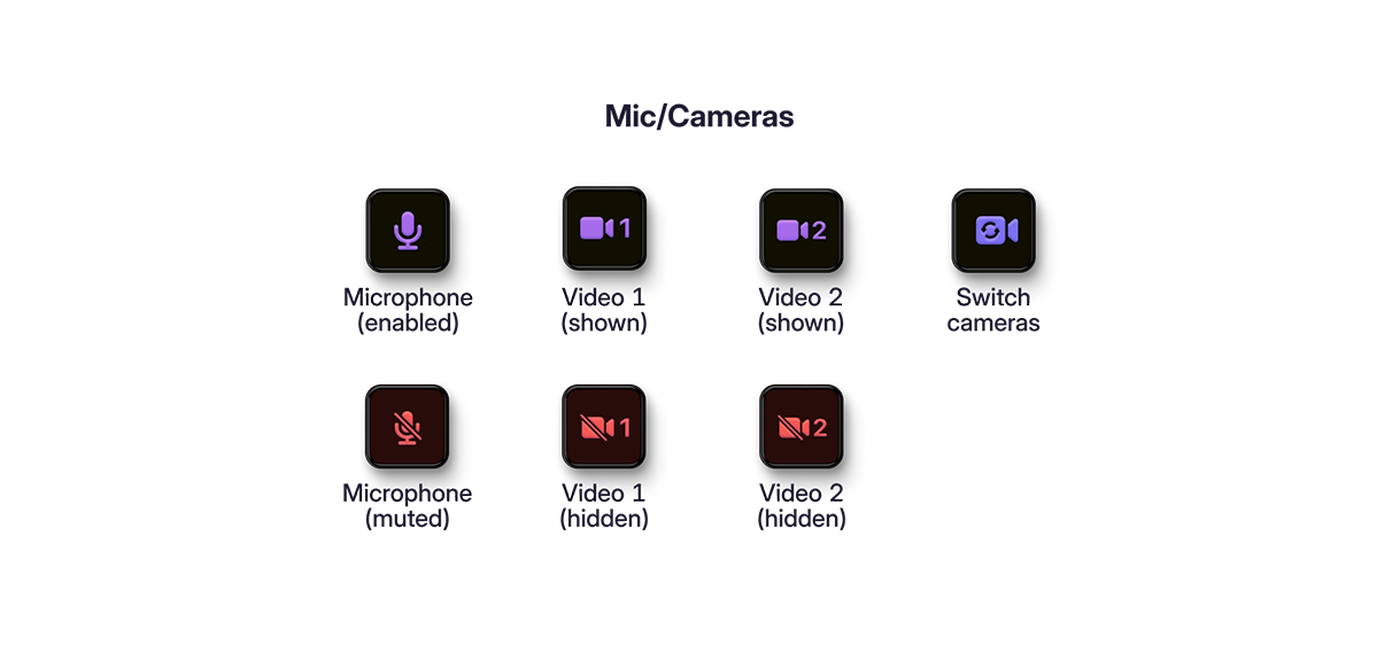
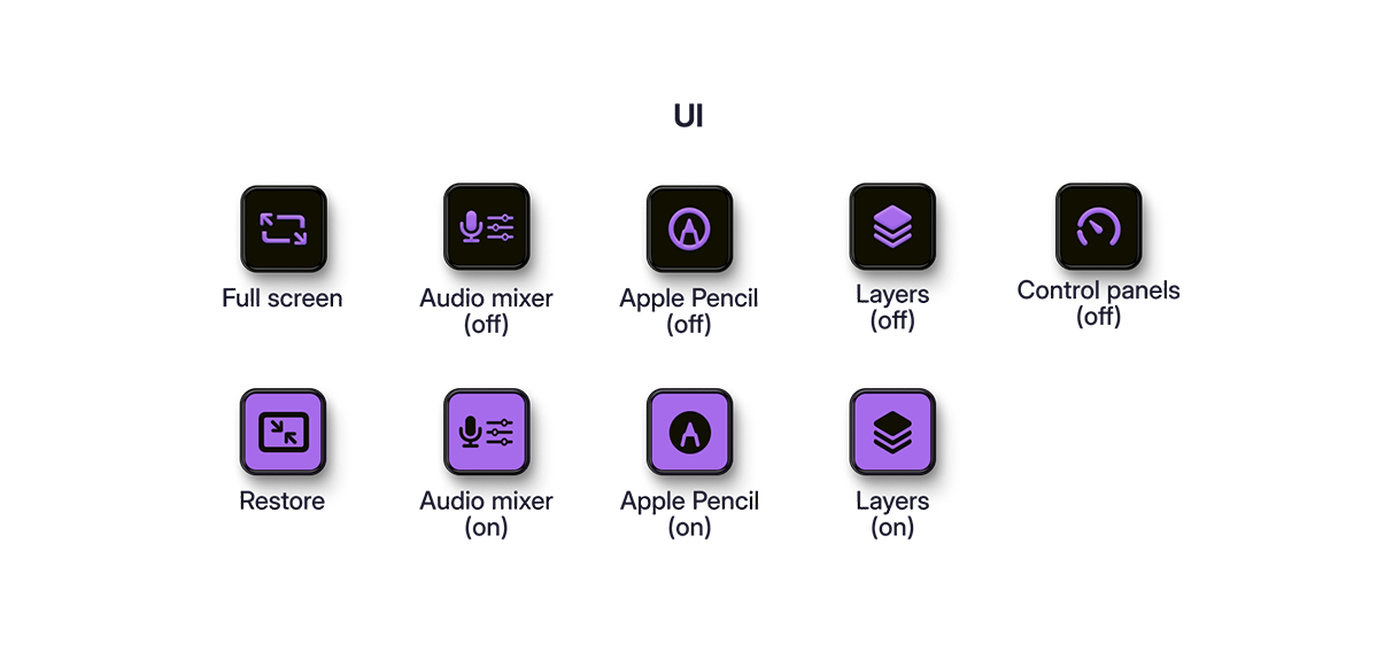
When Camo Studio is open and your Stream Deck is connected, the keys will populate with a selection of Camo actions. One category of actions are scene thumbnails, designed to make each of your scenes recognisable at a glance by auto-updating every 60 seconds using the content in its centre. If you want to have more control over this, scene thumbnail customisation takes just a few steps. The second category consists of Camo actions that correspond to the same icons found on your iPad's Camo Studio interface. These are grouped together by function:
Key configurations
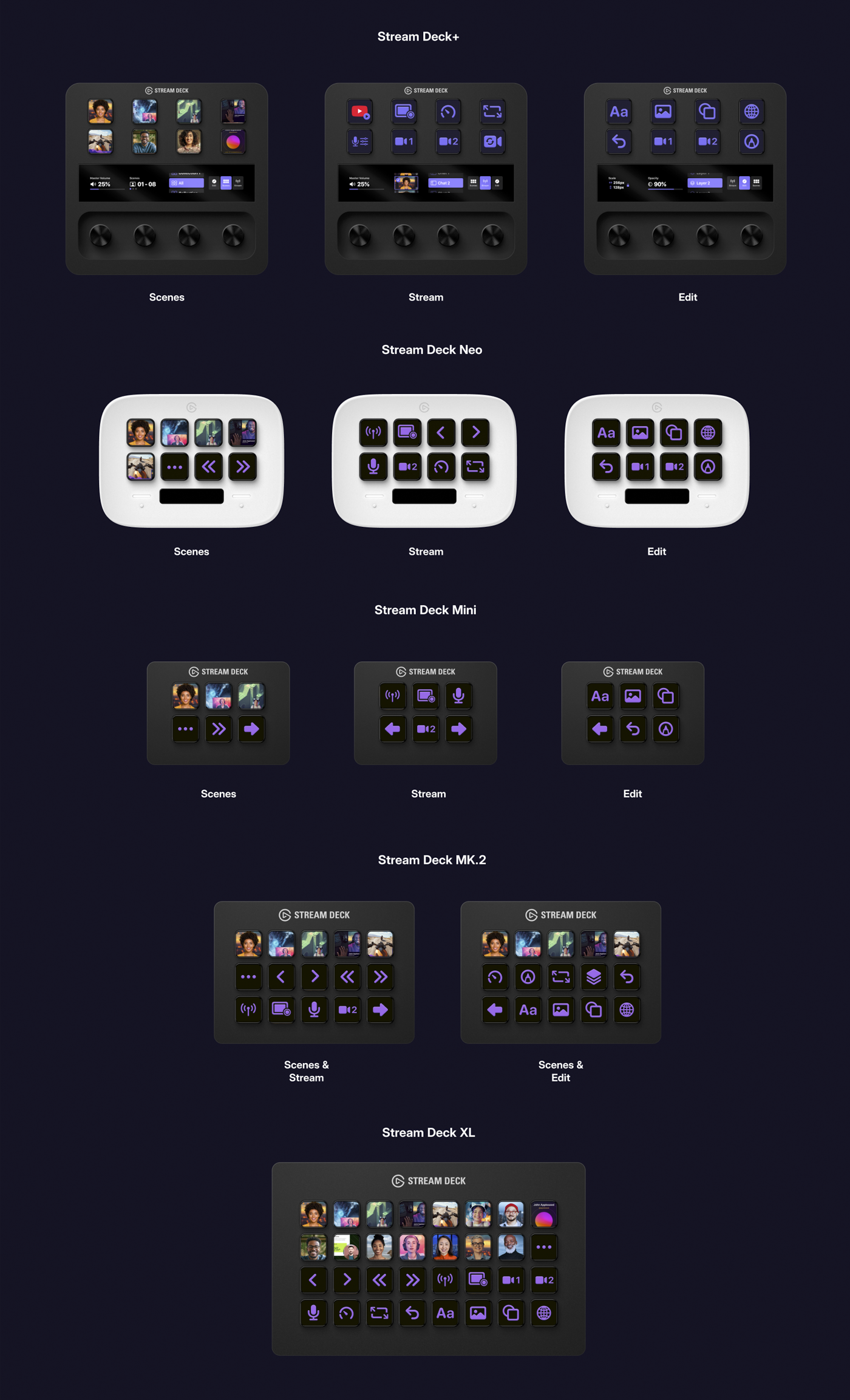
Due to their varying key layouts, each Stream Deck model will have its own Camo key configurations, with layouts grouped according to the major elements of the Camo Studio workflow: Scenes, Streaming/Recording end Editing. Thanks to its 32 keys, the Stream Deck XL accommodates all three categories at once, but here's how to navigate between layouts on the other models:
- Stream Deck+: the right-hand knob
- Neo: the touch points on either side of the Info Bar
- Mini and MK.2: the large left and right arrow keys
Scene thumbnails
When you connect your Stream Deck, a thumbnail for each of your scenes will appear in your Scene key configuration. Scenes in the Explore Scenes will not auto update, but others that you edit or create will, using an image generated every 60 seconds from the content in the centre of the frame (imported scenes will retain their existing thumbnail behavior).
If you prefer something more customised, you can create your own thumbnails so your scene keys look exactly how you want them. Watch the video to see how.