Introducing Camo Studio 2.3

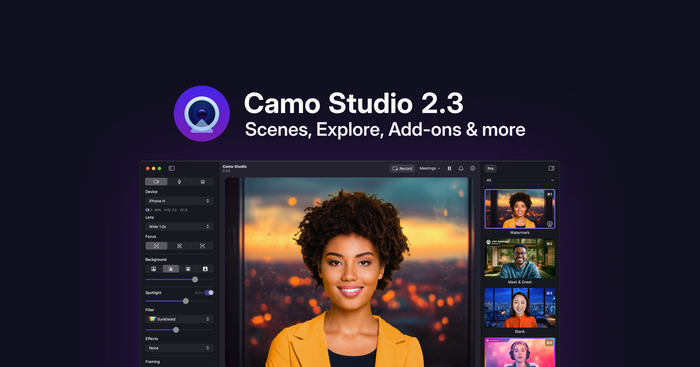
Camo Studio 2.3 begins rolling out today, bringing some big changes to the app. We've put a lot of thought into how best to improve the process of making amazing video, and have implemented new features and improvements we think will make it simpler and faster, while expanding what Camo users can do.
Whether you’re in a meeting at the office, streaming from home, or creating content in a studio, you can now save any desired look to a Scene and switch back to it whenever you need.
Camo's Galleries now have an Explore section, stocked with scenes, backgrounds, and filters to instantly level up your video and spark your creativity. We've also added Profiles to simplify video configuration, such as resolution and frame rate, along with Screen Capture functionality and Add-ons - a new way for us to share features with you, faster.
We'll be steadily rolling out the update, starting on macOS over the next week. We couldn't have done this alone. Every part of this update reflects invaluable feedback from Beta participants and feature requests from our users. Building Camo is truly a Community effort, and we'd love to know what you think after you've tried it out. Watch Eden's walkthrough to see what your new video superpowers look like, and read on to learn more about the most important new additions.
Scenes & Personalise
We’ve completely reworked how you configure your video in Camo Studio. Previously, you would adjust settings like overlays and presets individually. With Scenes, you can now save an entire configuration and switch between your saved looks with a single click.
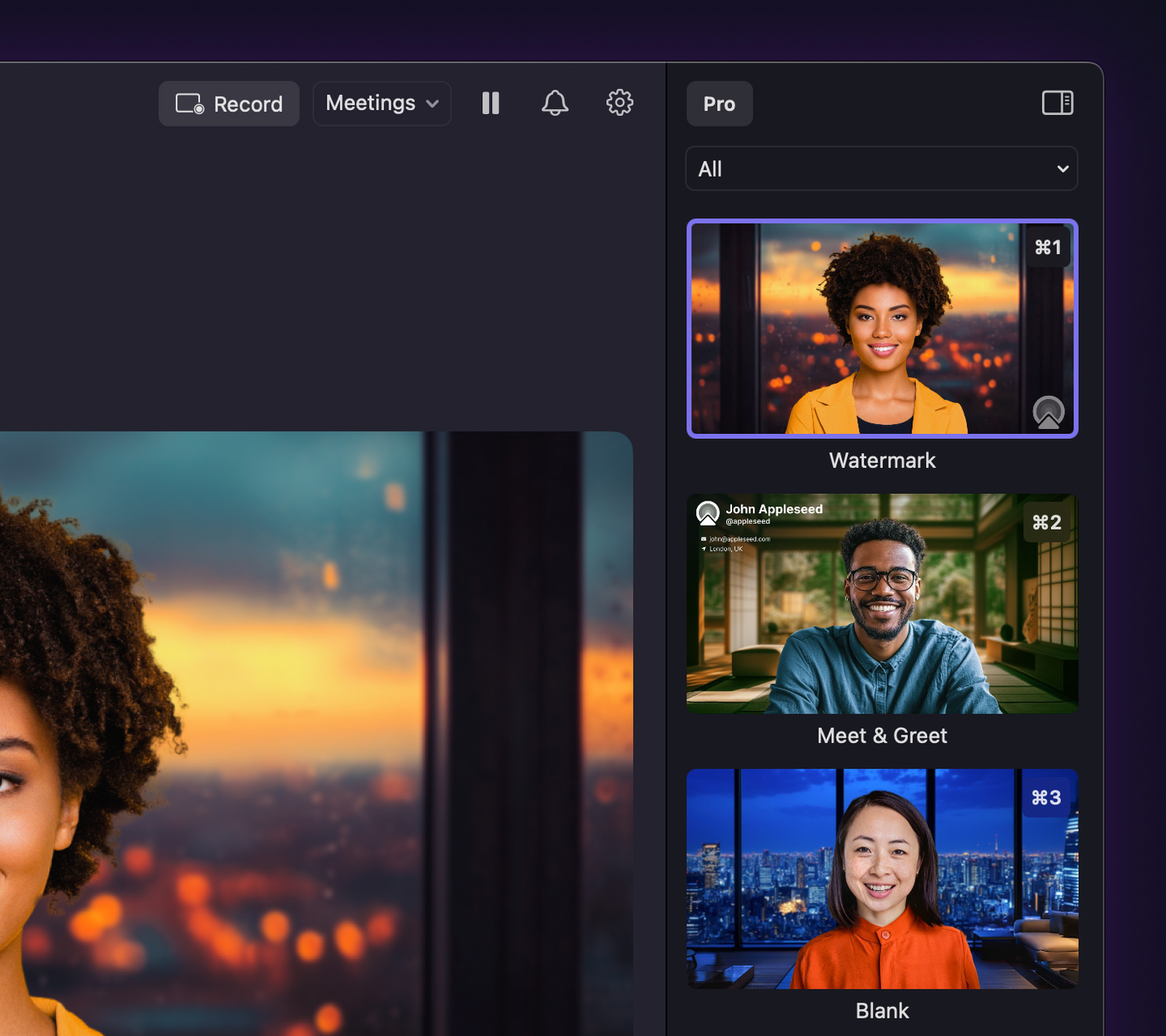
A Scene can include everything from backgrounds and filters to overlays, and it makes it simple to adapt your video for different situations. We’ve included a range of default Scenes for you to explore, and you can easily create and personalise your own.
This new workflow opens up new possibilities for how you use video. If you’re a professional, you might have one scene for meeting with clients, another for meeting with colleagues, and a series of scenes that shape a recorded presentation. For a content creator, scenes can be created for different cameras, making it simple to switch angles without interrupting your recording. Streamers will perhaps be most familiar with the concept, and can easily create and manage a sequence of scenes from before their broadcast starts to after it ends.
In addition, the new Personalise tool makes it easier than ever to customise your personal or professional details, or add a logo to your video. With one click from the interface, you can change the variables that automatically populate scenes like Meeting & Presenting, easily add your own additional categories, and swap in any image or logo.
Explore & Galleries
Scenes are a powerful way to set up your video, and with our new Explore section in the Galleries, you have a wealth of content to get started.
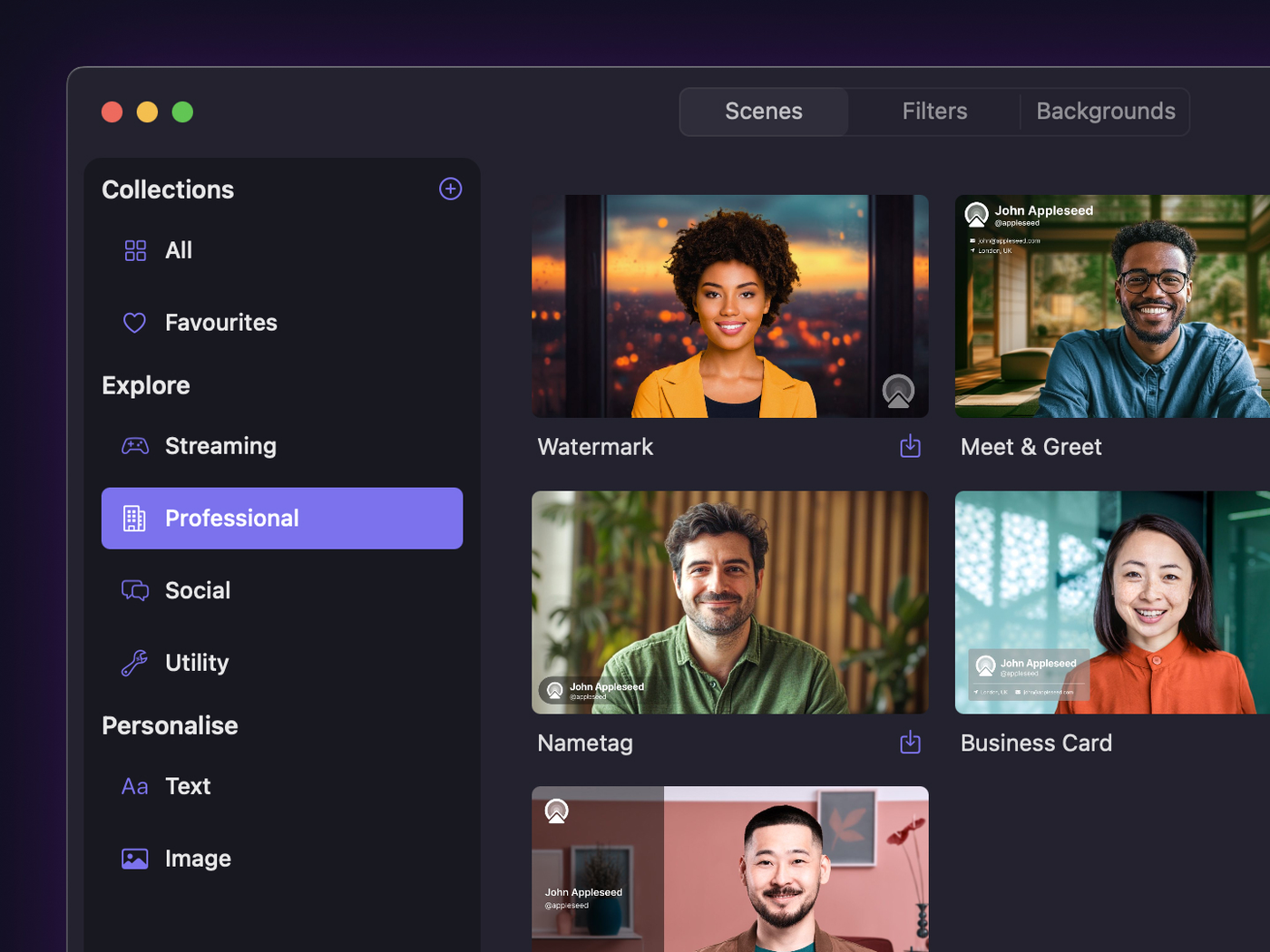
Each of Camo’s Galleries - for scenes, backgrounds, and filters - now has an Explore section. This is where you’ll find all the bundled assets we've created, including a new set of default scenes for a variety of use cases. It's a great way to discover new looks for your video, and we hope you’ll enjoy trying out many different combinations.
Profiles
We’ve taken the guesswork out of video output with the introduction of Profiles. Instead of having to manually setting your resolution and frame rate in hopes of achieving the best balance of quality and performance, you can now simply select a Profile that fits your needs.
Have a slow internet connection for your next meeting? Go with “Meetings” at 720p. Need a frame rate that keeps up your gameplay? Just select “Streaming.” Each Profile automatically requests the appropriate resolution and frame rate from your camera, simplifying your setup without sacrificing control.
Screen Capture
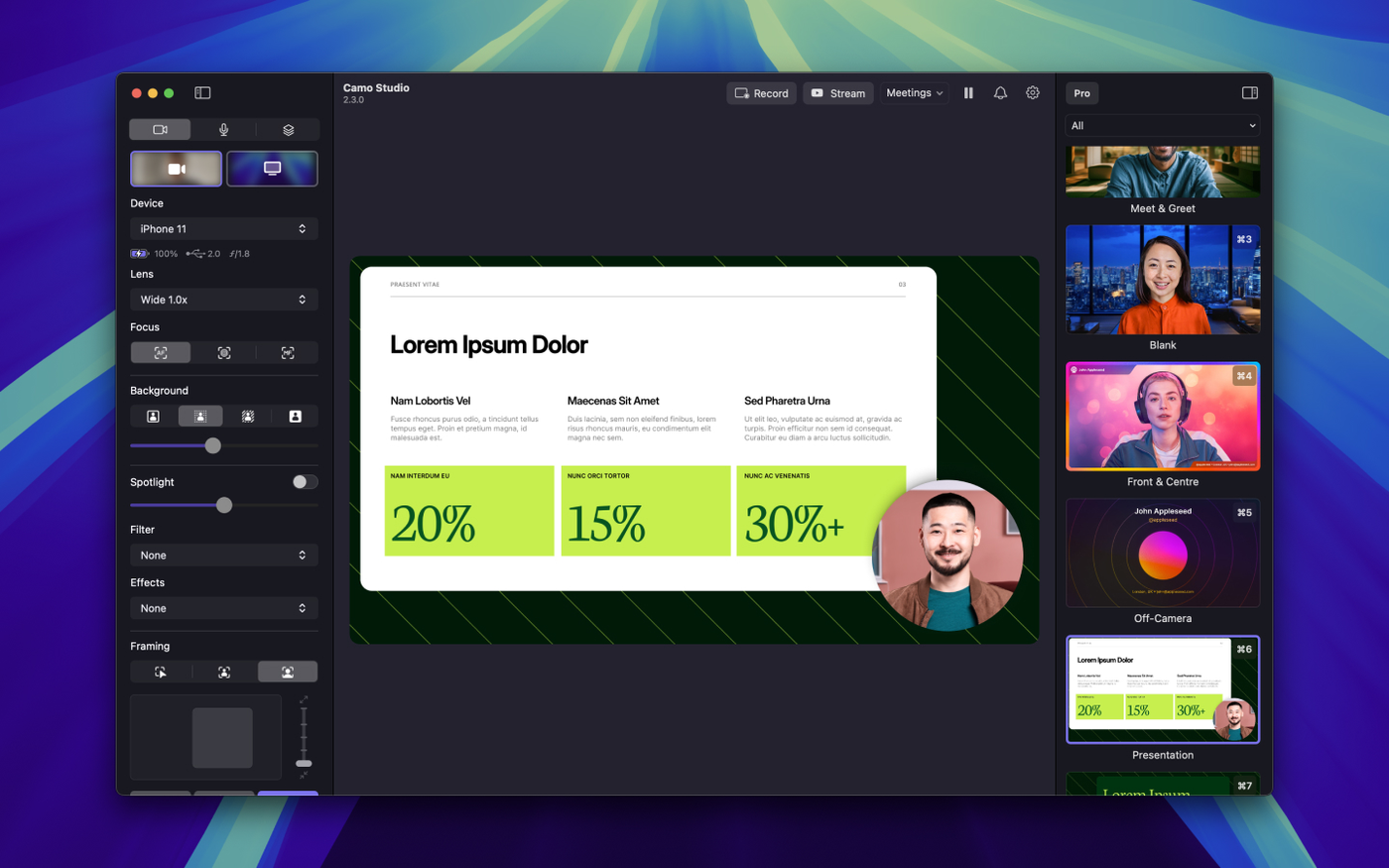
The ability to capture on-screen content with Camo has been high on our users’ wish lists, and Screen Capture now allows you to share your screen or an app window directly in your video. It’s a great tool for recording presentations, tutorials, or gameplay - add a screen capture layer to any of your scenes to seamlessly integrate it with your existing setup.
On macOS, Screen Capture is one of our new Add-ons, and on Windows, it’s a core feature that many users have been waiting for.
Add-ons
Our Camo betas have been very great for getting the next generation of capabilities into users’ hands to try out and provide feedback on; however, they require a steady stream of special builds and solid amount of administration, limiting the pace at which we’ve been able to go through the important cycle of build, distribute, listen and refine.
Enter Add-ons - a new way for us to expand the Camo experience and get new features in your hands, faster. They offer a modular approach to adding functionality, allowing you to try new tools and give us feedback on what works for you.
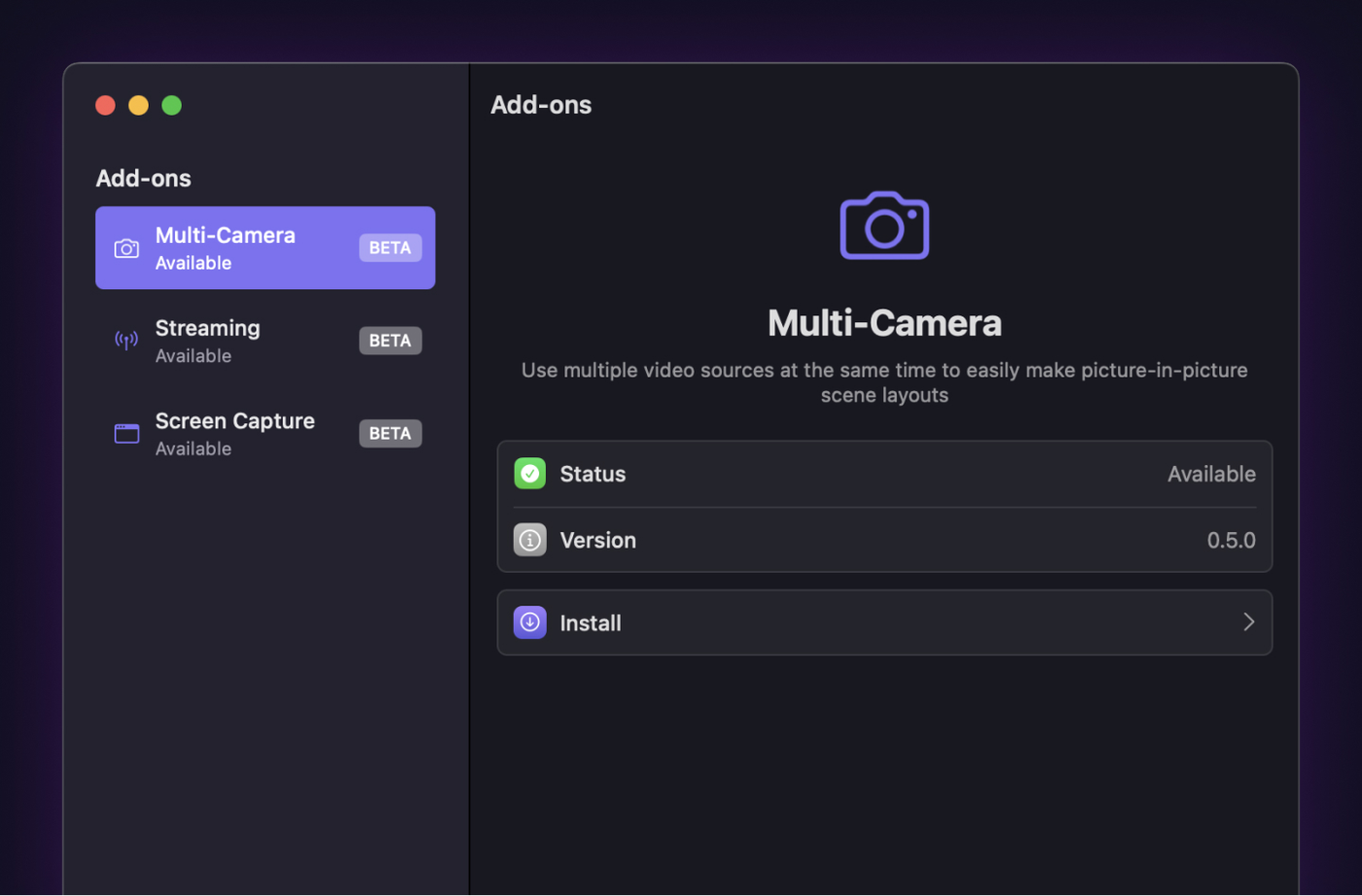
In this release, you’ll find a range of Add-ons to explore, including new features for streaming, multi-camera setups, and two platform-specific ones: Screen Capture on macOS, and multi-track audio on Windows. We encourage you to try them out and let us know what you think.
—
Beyond these new features, you’ll notice a refreshed interface designed to make the app more intuitive. We’ve reorganised some controls to better support Scenes and Profiles and made the app a more cohesive experience overall. We hope these changes make Camo Studio even easier to use.
Today's update marks a significant evolution of Camo Studio. As always, we thank our community for their help in reaching this next stage of Camo's journey, and look forward to seeing the magic our users create with their new video superpowers. Your feedback is vital to what we do, and we'd love to hear how this new Camo experience works for you.