


Extracting data from an encrypted iTunes backup is easy with the help of our backup extractor for iPhone, iPad or iPod. All you have to know is the password you used for encryption.
How to read an iTunes encrypted iPhone backup
Most people -- rightly! -- like to keep their personal data very secure. However, moving personal data from one device to another can certainly multiply the risks involved in keeping data secure. An iPhone and the backups created in iTunes can hold an incredible amount of personal data. In order to keep data secure when creating an iTunes backup, you can set up a password-encrypted backup using iTunes.
However, there will be certain cases -- such as an iOS upgrade failure, or a new iPhone / iPad -- that you might want to get hold of the encrypted iTunes data. iPhone Backup Extractor can resolve these issues without compromising a backup's security. As long as you know your iTunes backup password, you can access your backup data instantly. We believe that being able to see what is stored in the encrypted backup is helpful, and helps to clarify a backup's usefulness.
How to decrypt an encrypted iTunes backup
If you want to extract any data from an encrypted iTunes / iOS backup, you can easily do this through our software, iPhone Backup Extractor.
Follow these steps to decrypt your encrypted iTunes backup:
- Download iPhone Backup Extractor. Download iPhone Backup Extractor from our site, then install it. We have two versions for download: for Windows and for macOS and both are compatible with the latest versions of iOS.
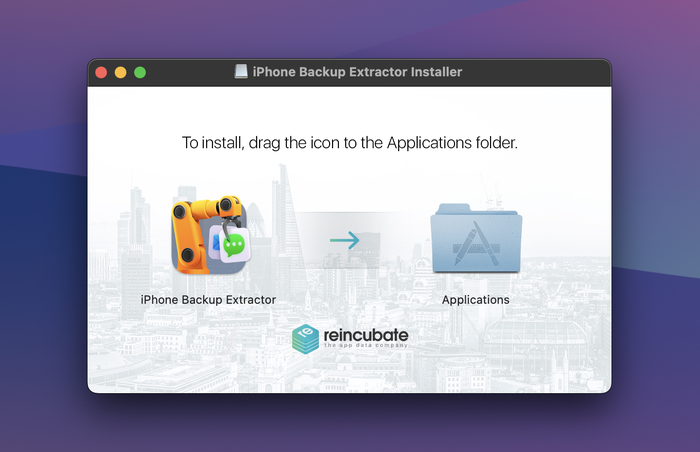
Install and launch iPhone Backup Extractor
- Load your encrypted iTunes / iOS backup. Start iPhone Backup Extractor and wait until the backups from your computer are loaded. iPhone Backup Extractor automatically loads the backups located in the backup default folder from your computer.
Unlock your encrypted backup by typing your backup's password. iPhone Backup Extractor will only work if you remember your password. Otherwise, if the password is incorrect, it simply won't open your backup.
If the backup file is located in another folder, then browse through the folders and choose the backup file location. If you have multiple backups stored into your computer, you should choose the encrypted backup from where you need to extract the data.
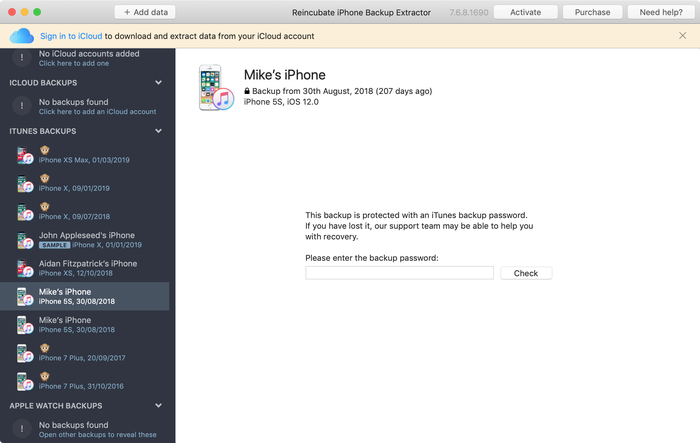
Decrypting an encrypted iTunes backup iPhone Backup Extractor
- Save your data. Extract data from the backup by clicking on each type of data, or by using the "File" and "Extract" menu, or by accessing the files in "Expert Mode".
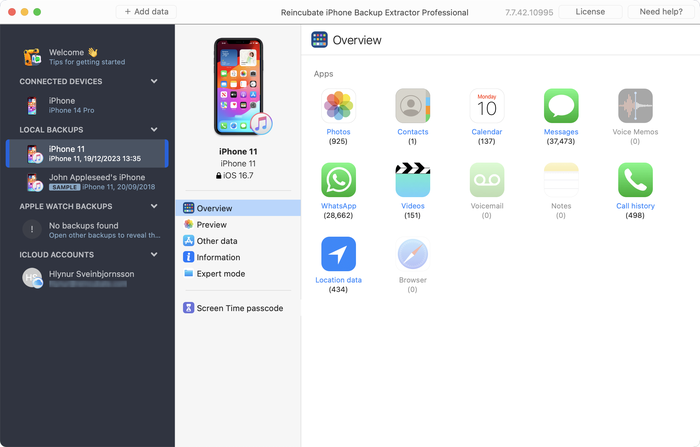
Extract your encrypted iTunes iOS backup
How to unencrypt an iPhone backup in iTunes
If you need to retrieve certain files from your backup and have just downloaded iPhone Backup Extractor, you might notice that it asks for a password before reading any of your encrypted backups. This means you chose the "Encrypt iPhone backup" checkbox in the iTunes options when you last syncronised or backed-up your iOS device.
If you'd like to convert your backup to an unencrypted backup, follow the steps below:
Synchronise your iPhone, iPad or iPod with encryption turned off
- Select your iOS in iTunes.
- Choose the "Summary" screen (tab) and scroll to the bottom of the screen.
- Then deselect "Encrypt iPhone backup" (the same for iPad or iPod).
- iTunes will then prompt you to "Enter the password to unlock your iPhone backup", enter the password you set originally
- Now synchronise your device to create an unencrypted backup.
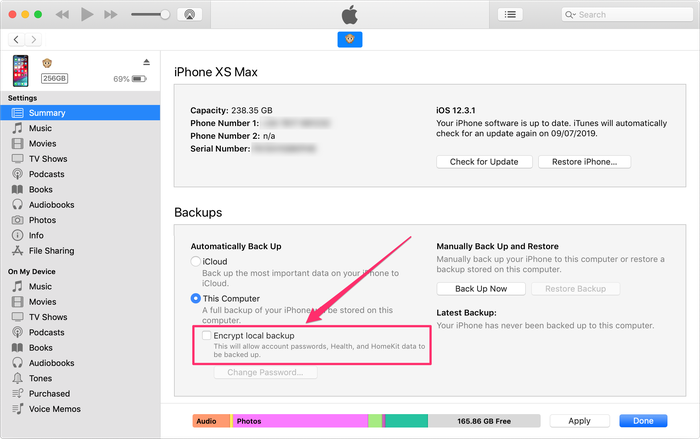
Unencrypt an iTunes backup
You can reverse the process to encrypt your backup after extracting the files to protect your backup again.
Some things you can and can't do with your iTunes backup data when encryption is enabled
| CAN | CANNOT |
|---|---|
| Restore with iTunes | Restore if you don't know your password |
| Read the encrypted backup with iPhone Backup Extractor | Fully read your encrypted backup if it got corrupted -- but you can contact our expert support team at support@reincubate.com for helpful tips and tricks |
| Save locally on your computer encrypted backup data such as photos, contacts, SMS, videos, notes, location data, WhatsApp messages and more | Recover data when you lose your backup's password. However, check Apple's guide to troubleshooting encrypted backups |
| Access your everything in your encrypted iTunes iPhone, iPod Touch or iPad backup with an iPhone Backup Extractor license | Access everything in your encrypted iTunes iPhone, iPod Touch or iPad backup with the iPhone Backup Extractor free edition (it's limited to four files from encrypted iTunes backups) |
The encrypted backup process in iTunes
When creating a backup, iTunes stores the backup files with hex-encoded SHA1 hash filenames, and they're listed in the backup's "manifest".
Knowing what the files are inside the iTunes backup of your iOS device can be really helpful should your backup or manifest files get corrupted. You can still restore your corrupted backup files using iPhone Backup Extractor, which opens the encoded files and extracts available data.
If you want to protect your files by encrypting the backups in iTunes, you can enable data protection with a click on "Encrypt backup". iTunes will then give an option set a password for all backups created on the computer. You'll be asked about this password each time you want to restore so you might want to keep that password in mind or in a safe place.
What if you want to access data from your iOS device but iTunes has encrypted your backups? You can easily unencrypt your in iTunes, if the files are still on your device (by creating a new -- unprotected -- backup). Once finished switch the "Encrypt iPhone backup" option back and iTunes will re-encrypt that backup for you. That said, there should be no need to do this.
To make life easier, we've created a short video showing how to recover iPhone data from an encrypted backup. You'll see when we get to the extraction stage we pull out contacts, but it works just the same for iMessage, SMS, calendars, photos, videos, notes and app data.
Need to recover your encrypted backup password?
We publish a support article on recovering iTunes backup passwords which may be useful for you. Also, if you contact our recovery team we may be able to help, and will respond as rapidly as possible.