

Recovering data from a corrupt iTunes backup is difficult but not impossible, and messages like "backup is corrupt or not compatible with your iPhone that is being restored" don't mean your data is "irreversibly lost". You've got a great chance of recovering corrupt backups automatically with iPhone Backup Extractor.
It's usually straightforward to recover data from an unencrypted corrupt iTunes backup. Encrypted corrupt backups are trickier, especially if the "manifest files" are missing, as these describe how data in the backup was encrypted, and are essential for the decryption process.
Backups can be corrupted to different extents. For example, running out of disk space in the middle of a backup, having a hard-drive fail (or Dropbox eating your files!), an iOS upgrade going wrong, or a power failure during the backup can each affect the backup in different ways.
There are a handful of errors you might get when a backup is corrupt. Let's look at the cause and solution to each.
iTunes restore errors that indicate corruption
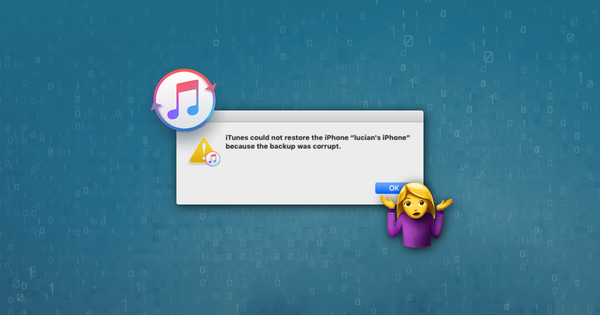
iTunes could not restore the iPhone because the backup was corrupt or not compatible with the iPhone that is being restored
This first message is straightforward and tells you you're dealing with a corrupt backup. Every now and then, when iTunes is backing up your iOS, it may happen that this process fails without an error message. It can suck to find out that you have a corrupt backup only when trying to restore with iTunes. It's not too hard to get your data our: check out our guide on getting data out of a corrupt iPhone backup below,
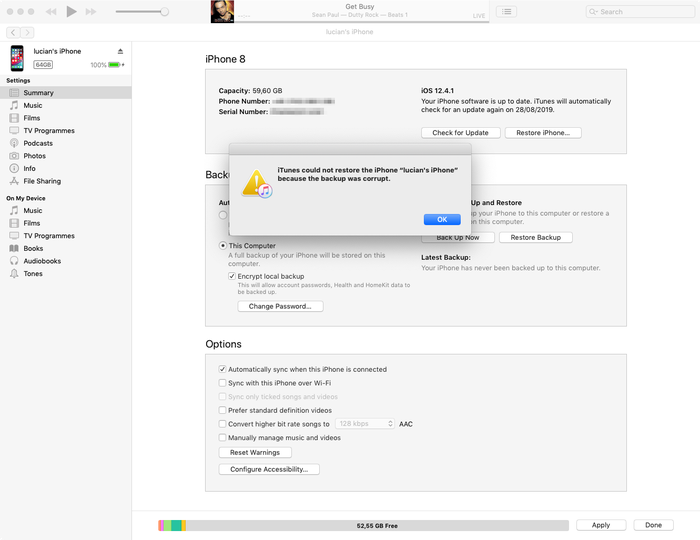
iTunes' corrupt backup error message
iTunes could not restore iPhone because the backup session failed
This error is similar to the first, and also tells that you are dealing with a corrupt or unfinished iTunes backup. The cause is similar. See our tips on recovering data from corrupted backups below.
iTunes could not restore because iTunes doesn't recognise your device
This third message requires that you check you are using the latest version of iTunes, that your USB cable is connected properly (and not damaged), and you don't have any third-party software interfering with iTunes.
If the above doesn't work, this issue can usually be resolved by using recovery mode. Recovery mode will erase your device and restore it: if you previously synced with iTunes or iCloud you'll be able to restore from backup after recovery.
The worst case is that there's a fundamental problem with the iOS device you're connecting. If -- and you have a spare device -- try using it. Failing that, we can help you extract data from a corrupt iTunes backup. Read on!
The iPhone could not be restored. An unknown error occurred
This error is a catch-all for a range of different problems. Depending on the underlying cause, there are a number of solutions:
- Using the latest version of iTunes (and not a beta!) is a good place to start -- upgrade, if you're not already on it
- Windows users can find a reboot helps (if you follow the step above and upgrade iTunes, you'll need to reboot anyway)
- Completely resetting the phone and running a restore in DFU mode
- Apple publish a short document with further tips for this error
If you can't succeed here, check out our guide on recovering data from a corrupt iTunes backup below.
A software update is required to connect to iPhone
This message implies you need an update to connect to the iPhone, and it's not clear from the message whether it means it needs to update your PC or Mac, or the iPhone. It's the computer that it's referring to.
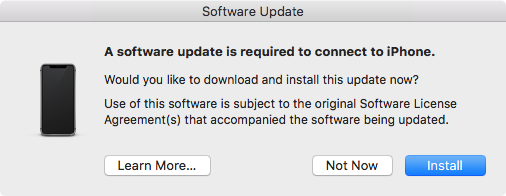
A software update is required to connect to iPhone
Users will often get this if they are running a beta version of iOS, but aren't running the equivalent iTunes beta. If that's the case, hitting the "Install" button won't work. It'll say it's downloading an update for a while before it fails, saying "Installation failed. Can't install the software because it is not currently available from the Software Update server." The solution is to install the latest beta of iTunes.
4 tricks to repair a corrupt iPhone backup and retrieve your data
iPhone Backup Extractor is designed to help you get your data when a backup can't be restored properly through iTunes. It opens iTunes and iCloud backups and extracts valuable data -- even if that backup has been corrupted.
1. Use iPhone Backup Extractor's built-in corruption handling
Even the free edition of iPhone Backup Extractor has a lot of cleverness built-in to it to handle corrupt backups, and it may be that it can extract your data normally.
Try the quick links for data extraction from "Overview", and see our conventional guides on recovering iTunes data.
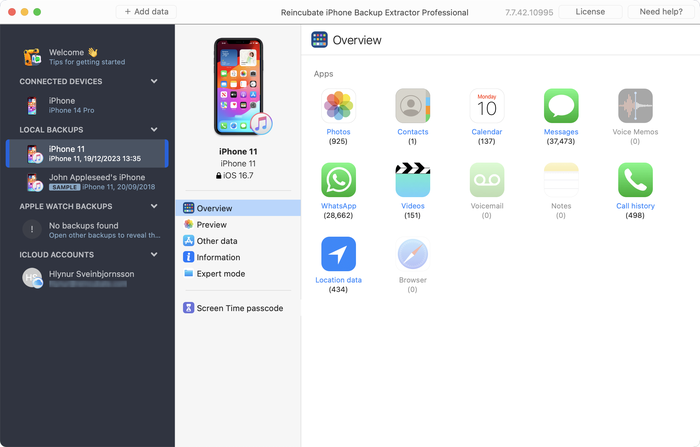
Extracting data from corrupt backup with iPhone Backup Extractor
If the overview doesn't generate what you need, there are two other approaches to try.
- Check the "Preview" tab to see if data is available for extraction. If data is there, you can click the app's name, select the messages you need, and extract them in the format you want. As below:
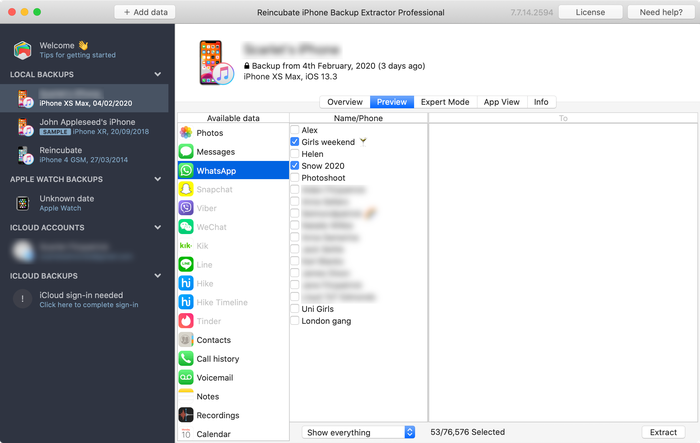
Previewing messages
- Use the "Extract" menu to export available messages as HTML or as CSV, as shown in the screenshot below:
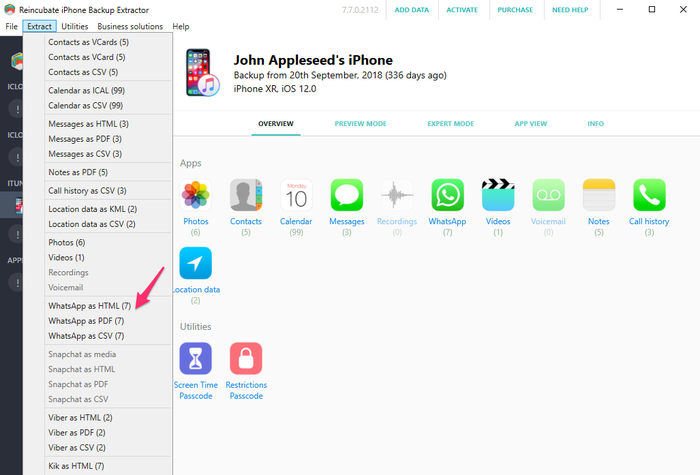
Extracting messages with the "Extract" menu
Data like contacts, messages and photos can still be retrieved from the corrupt backup, even if the steps above don't work. Don't give up hope -- let's go deeper...
2. Use expert mode to recover iPhone data from individual files
If the direct approach doesn't work for you, you can still use "Expert mode" and "App view" to recover your files from the backup. Data such as contacts, calendars, SMS messages, locations and notes are stored in specific files in your backup, and -- if you fish the files out -- iPhone Backup Extractor can convert them into readable formats for you.
Load your backup with iPhone Backup Extractor, and then navigate through "Expert mode" to pick out the files representing the data you need. We've got an article on where apps store their data in an iTunes backup which will be helpful when knowing where to look.
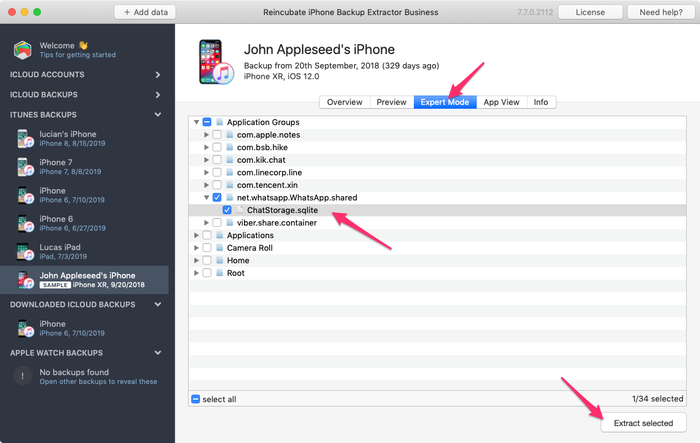
Manually extracting the WhatsApp database with iPhone Backup Extractor
Once you have the necessary file, you can convert it into a readable format:
- Click the "File" menu in iPhone Backup Extractor
- Select "Convert Messages DB to CSV", "Convert contacts DB to vCards", or whichever option is most appropriate for your file
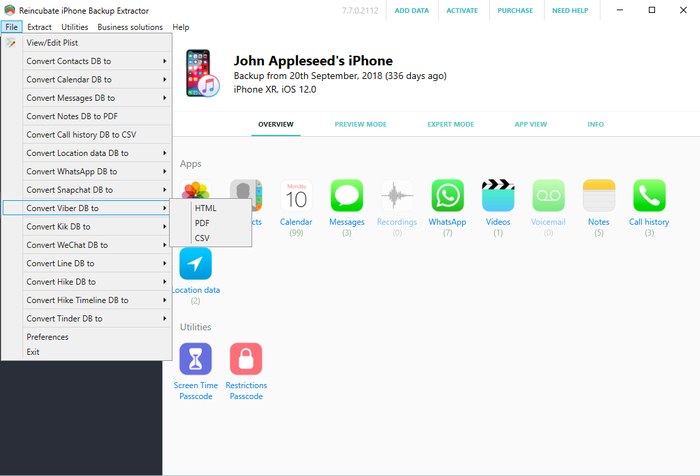
Using the file menu to convert...
- The app will export your contacts and messages.
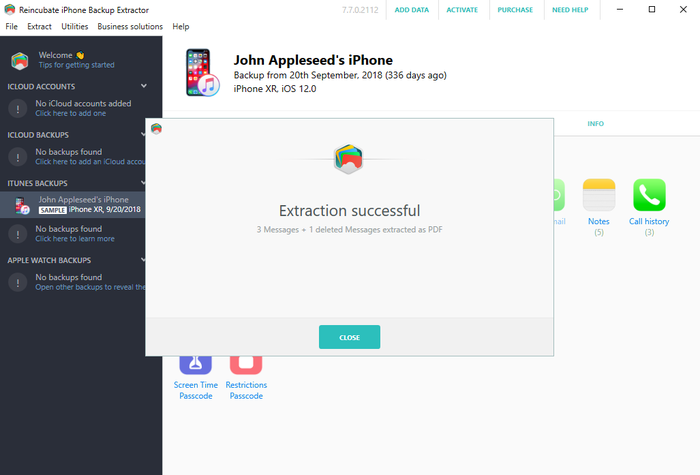
Recovery successful!
3. Sift unencrypted iPhone backup for photos and video
You may still find photos and videos in your iTunes backup even if the iTunes process was incomplete and led to a corrupt backup file. In order for this to work, the backup needs to have not been created with encryption.
Try this:
- Find the backup folder in question (you can right-click on the backup in iPhone Backup Extractor and choose "reveal enclosing folder")
- Make a copy of the entire folder -- we're going to heavily modify it...
- Sort the files inside by size and remove all files smaller than 300KB
- Download and install Bulk Rename Utility -- it's free and great for what we need here
- Open "Bulk Rename Utility" and navigate to the copy of the backup folder you made, then select it
- Add
jpg(without dot) toExtension Section (11)or.jpg(with dot) using theAdd > Suffix (7)menu - Select all of the files in the top window (they’ll appear in green)
- Click the "Rename" button and all the selected files will then be renamed to
jpgfiles
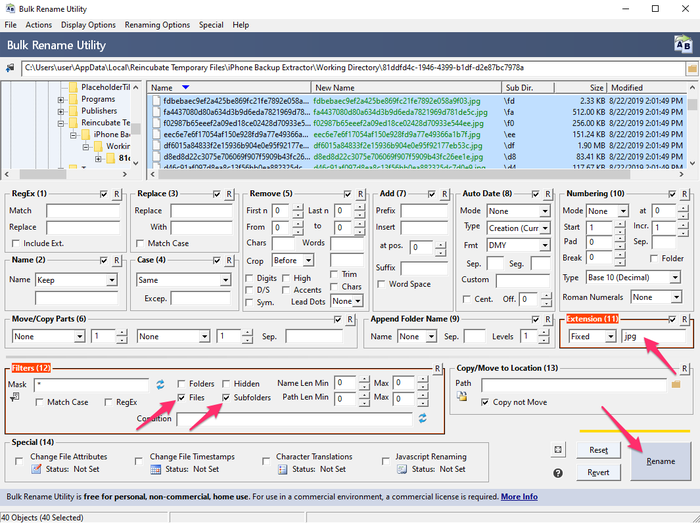
Bulk Rename Utility in action
- In the folder where you saved them, select "Thumbnails view" in Windows Explorer or macOS Finder -- now you should be able to see which files are photos, as they'll be shown with previews
- Move the recovered photos to a safe new folder, then repeat the process from step #5 with other file extensions such as
.movand.heicuntil you've recovered them all
4. Rely on Reincubate's experts to do it for you
If none of the approaches above work, or if they get too technical, you can always reach out to us. We'd love to help. Our support team will probably ask that you share a copy of your "manifest files" with them, and we've got an info panel below with some more information on them.