


If you’re looking for a way to recover call history from your iPhone, you’ve come to the right place. In this article we’ll describe how to recover call history from any iTunes backup. Recovery of call history data includes data from any "CallKit" compliant app, you when you get this data, you'll also see any calls you've made with FaceTime, WhatsApp, Skype, or any other VoIP application, all neatly categorised. Hurrah!
The call history on your device is backed up once you connect your iPhone to iCloud over Wi-Fi, or when you generate an iTunes backup.
If you only want to retrieve your call history, please note that you shouldn’t restore a full backup to your iPhone, as this would remove the records created after the moment that backup was taken.
Once you've determined whether to retrieve your entire call history (including the deleted ones!) from iTunes or iCloud, you can follow these steps to get your call history back:
Step 1. Download and install iPhone Backup Extractor.
Step 2. If you're recovering from iCloud, click on the + button (or the "Click here to add an iCloud account") on the left-hand side of the app, then enter your iCloud credentials to add your iCloud account.
If you're recovering from an iTunes backup, you'll see iPhone Backup Extractor will automatically the ones stored in iTunes' default backup folder.
If your backup isn't in the default folder (it should be so long as you haven't moved it!), you'll need to add by clicking the + button or the "Click here to learn more". That'll guide you through the process.
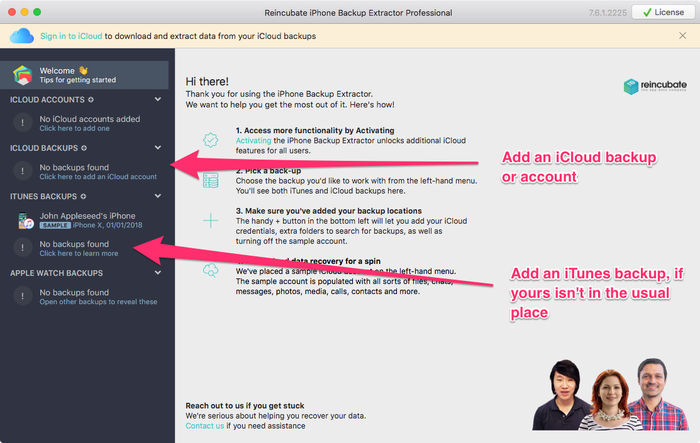
Adding iCloud or additional iTunes backups
Step 3. Select your backup on the left of the app and click on "Extract Call history”, then select the location where you want to save the .csv file containing the call history. The extraction will take just a few seconds.
Once the data is extracted, open the CSV file with your inbound and the outbound calls.
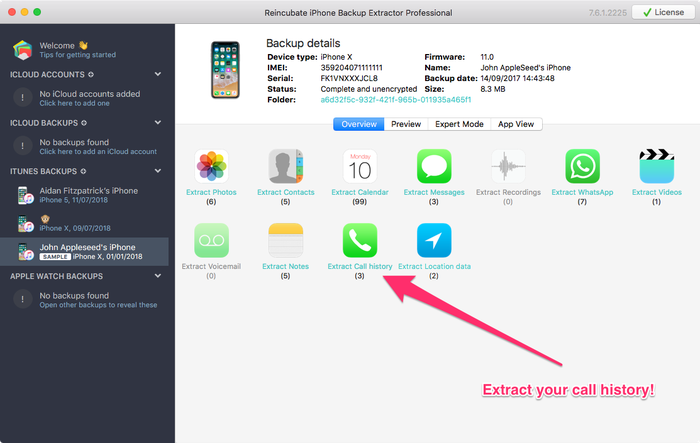
It's easy to extract your call history...
Did you follow our step by step guide for recovering the call history from your iPhone? Did it help you? In case you need additional details, don’t hesitate to contact our support team. We'd love to hear from you!