ElgatoのStream DeckをCamo Studio for iPadで使用する
Neo、Stream Deck+、その他のモデルをお持ちの場合でも、Stream DeckをCamoに接続すれば、シーンの作成や切り替え、オーディオ調整、ビデオソースの切り替え、ライブ配信など、Camoワークフローのあらゆる部分をカバーするインスタントキーレイアウトを活用できます。ElgatoのStream Deck統合の最小要件は、M1チップを搭載したiPadOS 17以降です。
Stream Deck統合を有効にする
Stream DeckをiPadに接続する
Stream DeckをiPadに接続する方法は、カメラやマイクと全く同じです。USB-Cポートに直接接続するか、複数のデバイスを接続する場合はUSBハブを介して接続します。最適な結果を得るには、推奨のパワードモデルのいずれかをご使用ください。Stream Deckを接続して準備ができたら、Camoがシーンの構築から録画、ライブ配信まで、ビデオワークフローの各部分に最適なコマンドを自動的に設定します。
迷彩キー
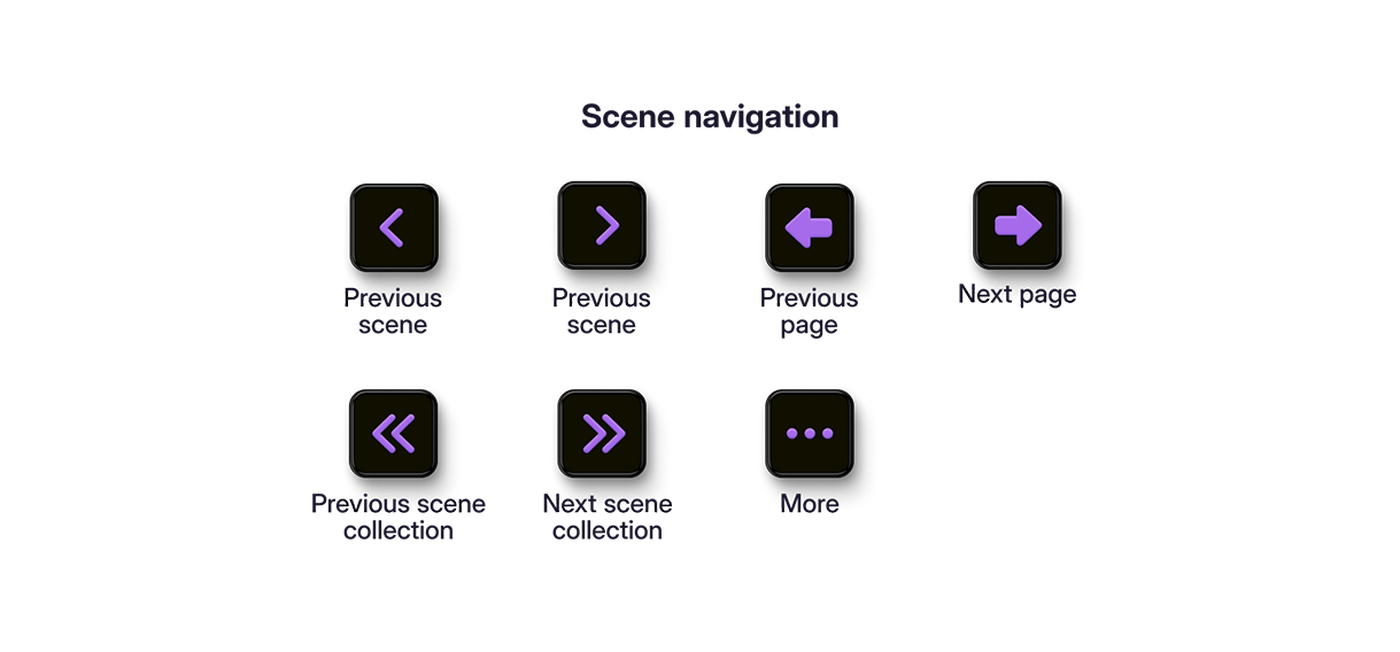
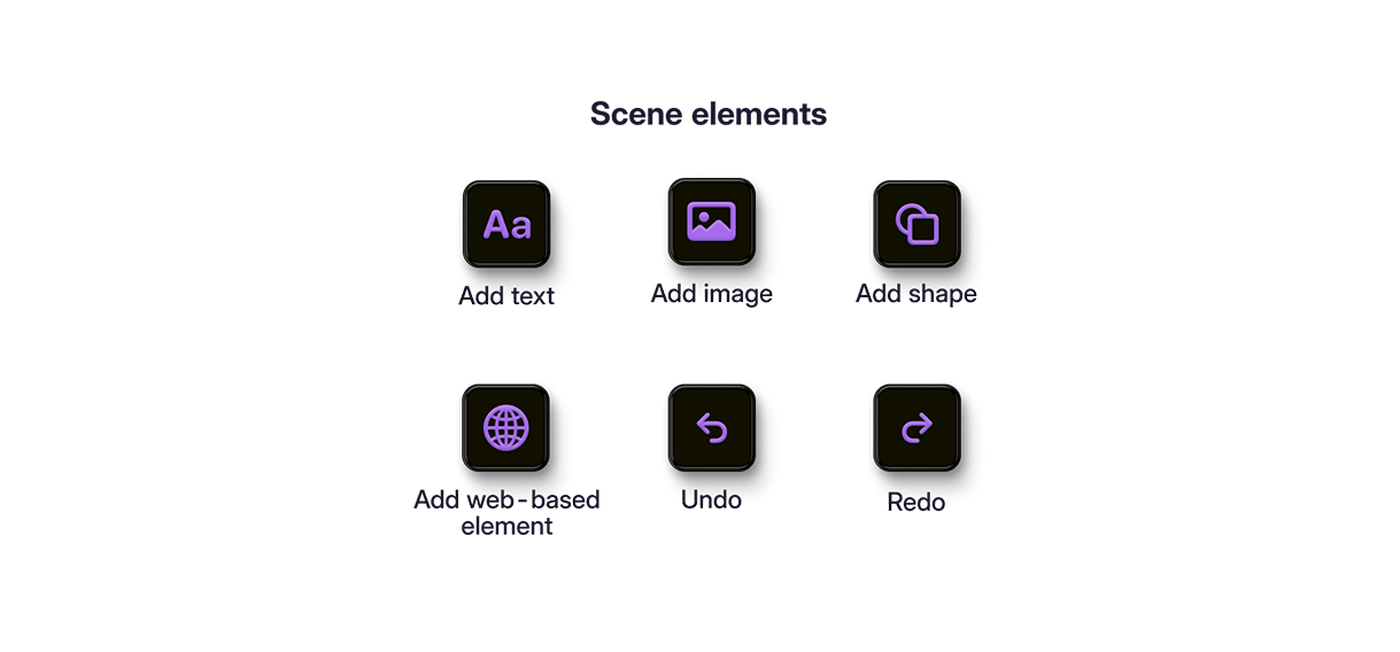
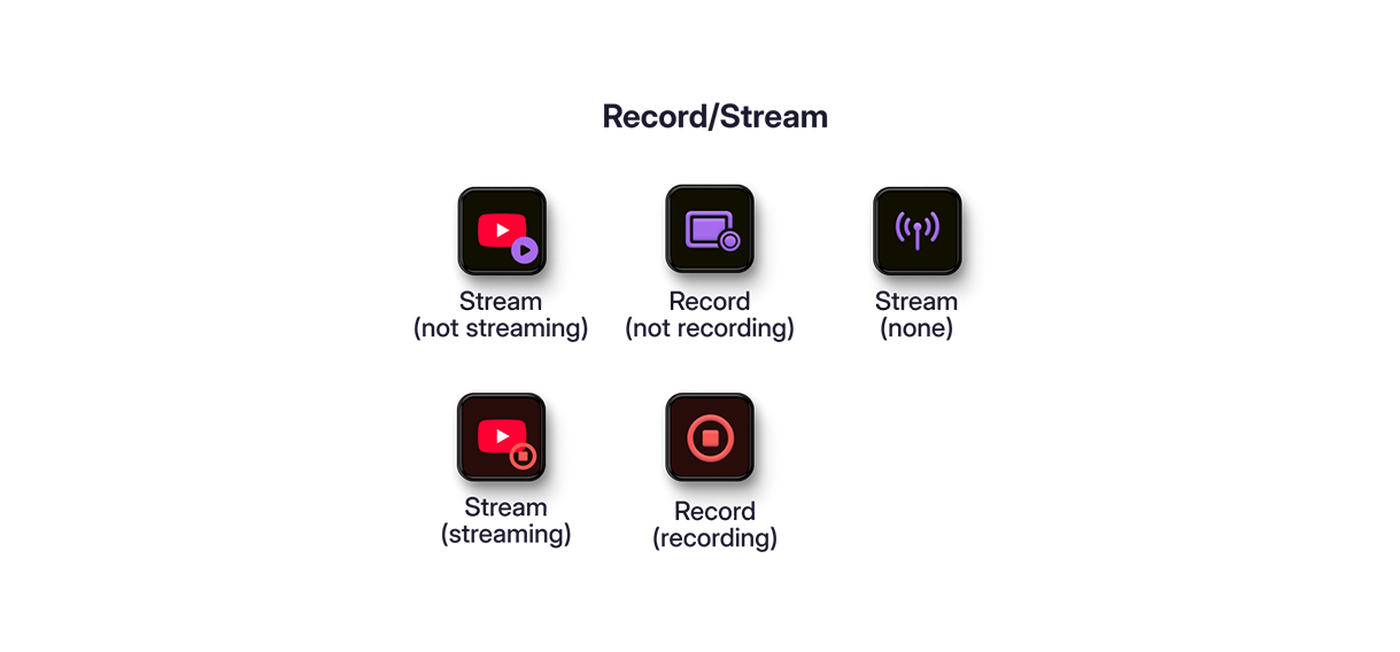
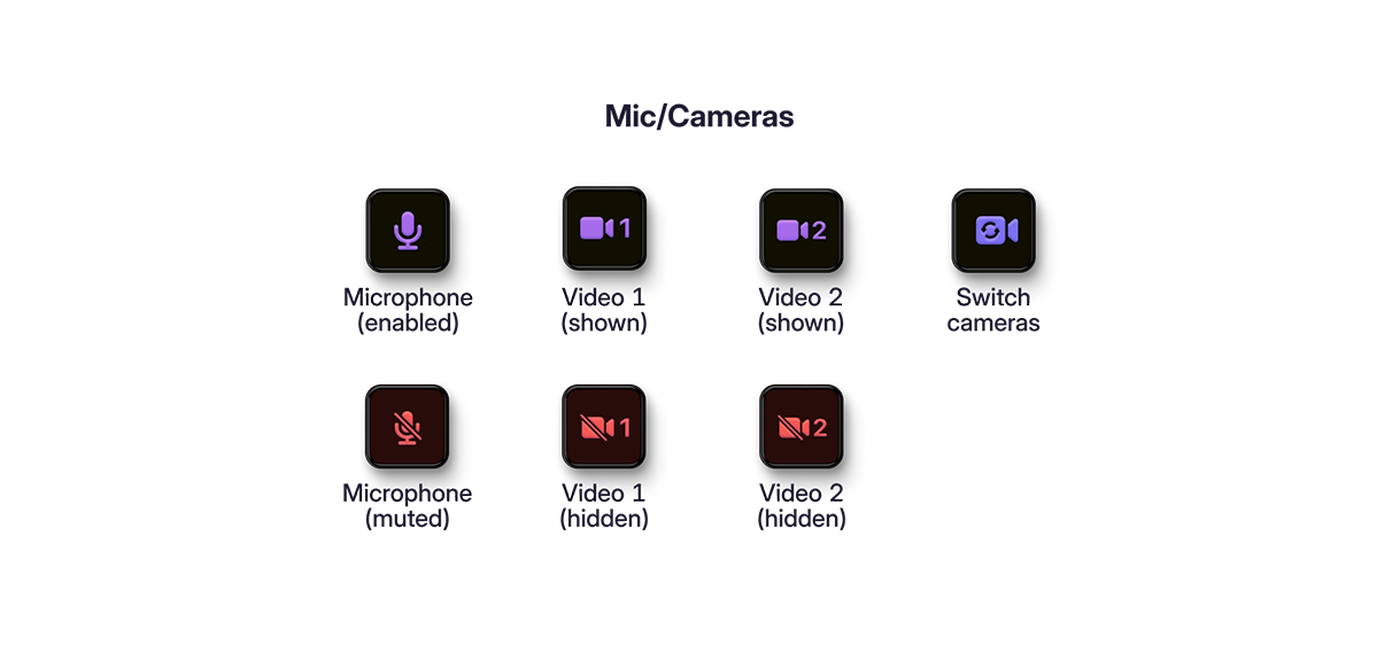
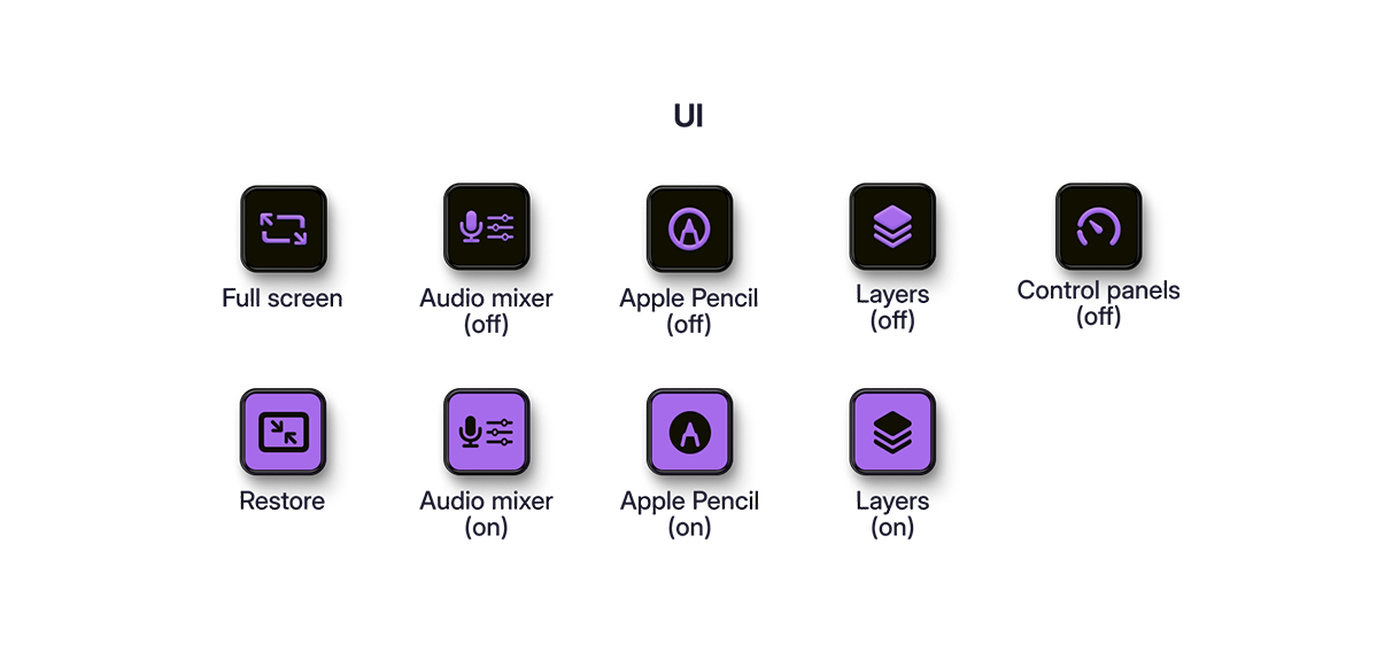
When Camo Studio is open and your Stream Deck is connected, the keys will populate with a selection of Camo actions. One category of actions are scene thumbnails, designed to make each of your scenes recognisable at a glance by auto-updating every 60 seconds using the content in its centre. If you want to have more control over this, scene thumbnail customisation takes just a few steps. The second category consists of Camo actions that correspond to the same icons found on your iPad's Camo Studio interface. These are grouped together by function:
主要な構成
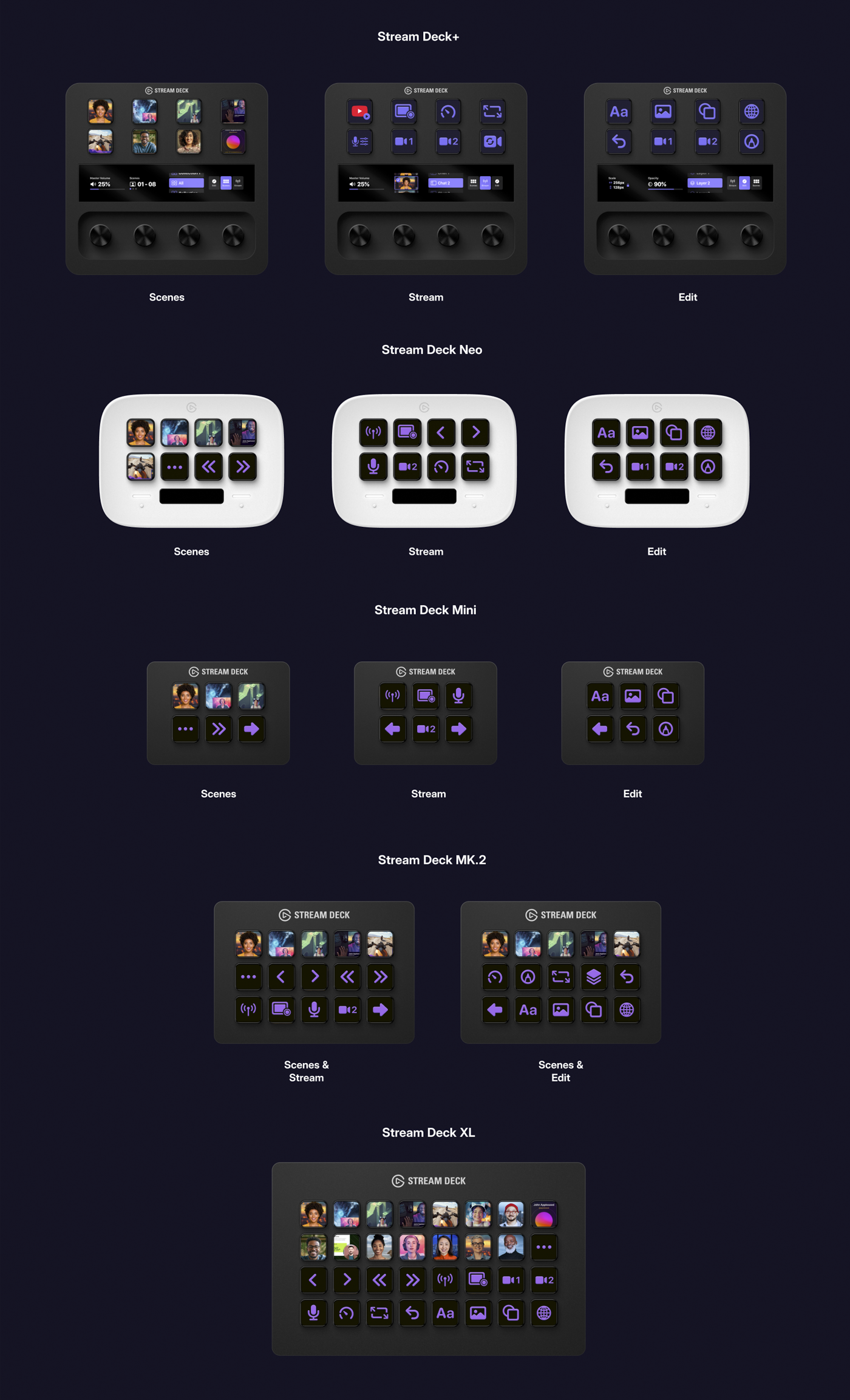
Stream Deckの各モデルはキーレイアウトが異なるため、Camo Studioのキー構成がそれぞれ異なります。レイアウトは、Camo Studioワークフローの主要要素(シーン、ストリーミング/録画、編集)ごとにグループ化されています。Stream Deck XLは32個のキーを備えているため、これら3つのカテゴリすべてに対応しています。他のモデルでは、レイアウト間の切り替え方法は次のとおりです。
- Stream Deck+: 右側のノブ
- Neo: 情報バーの両側にあるタッチポイント
- MiniとMK.2: 大きな左右の矢印キー
シーンサムネイル
When you connect your Stream Deck, a thumbnail for each of your scenes will appear in your Scene key configuration. Scenes in the Explore Scenes will not auto update, but others that you edit or create will, using an image generated every 60 seconds from the content in the centre of the frame (imported scenes will retain their existing thumbnail behavior).
もっとカスタマイズしたい場合は、シーンキーを思い通りにサムネイル化して、自分好みのデザインに仕上げることもできます。やり方は動画をご覧ください。