iPad용 Camo Studio와 함께 Elgato의 Stream Deck 사용하기
Neo, Stream Deck+ 또는 다른 모델을 사용하든 Stream Deck을 Camo에 연결하면 장면 생성 및 전환부터 오디오 조정, 비디오 소스 전환, 라이브 방송 등 Camo 워크플로우의 모든 부분을 아우르는 즉각적인 키 레이아웃을 활용할 수 있습니다. Elgato의 Stream Deck 통합 최소 요구 사항은 M1 칩 이상을 구동하는 iPadOS 17입니다.
Stream Deck 통합 활성화
iPad에 Stream Deck 연결하기
Stream Deck을 카메라나 마이크를 연결하는 것과 같은 방식으로 iPad에 연결하세요. USB-C 포트에 직접 연결하거나, 여러 대의 기기를 연결하는 경우 USB 허브를 통해 연결할 수 있습니다. 최상의 결과를 얻으려면 권장하는 전원 공급 모델 중 하나를 사용하세요. Stream Deck이 연결되고 사용 준비가 되면 Camo가 장면 구성부터 녹화, 라이브 방송까지 비디오 워크플로우의 각 단계에 가장 유용한 명령으로 자동으로 구성합니다.
카모 키
When Camo Studio is open and your Stream Deck is connected, the keys will populate with a selection of Camo actions. One category of actions are scene thumbnails, designed to make each of your scenes recognisable at a glance by auto-updating every 60 seconds using the content in its centre. If you want to have more control over this, scene thumbnail customisation takes just a few steps. The second category consists of Camo actions that correspond to the same icons found on your iPad's Camo Studio interface. These are grouped together by function:
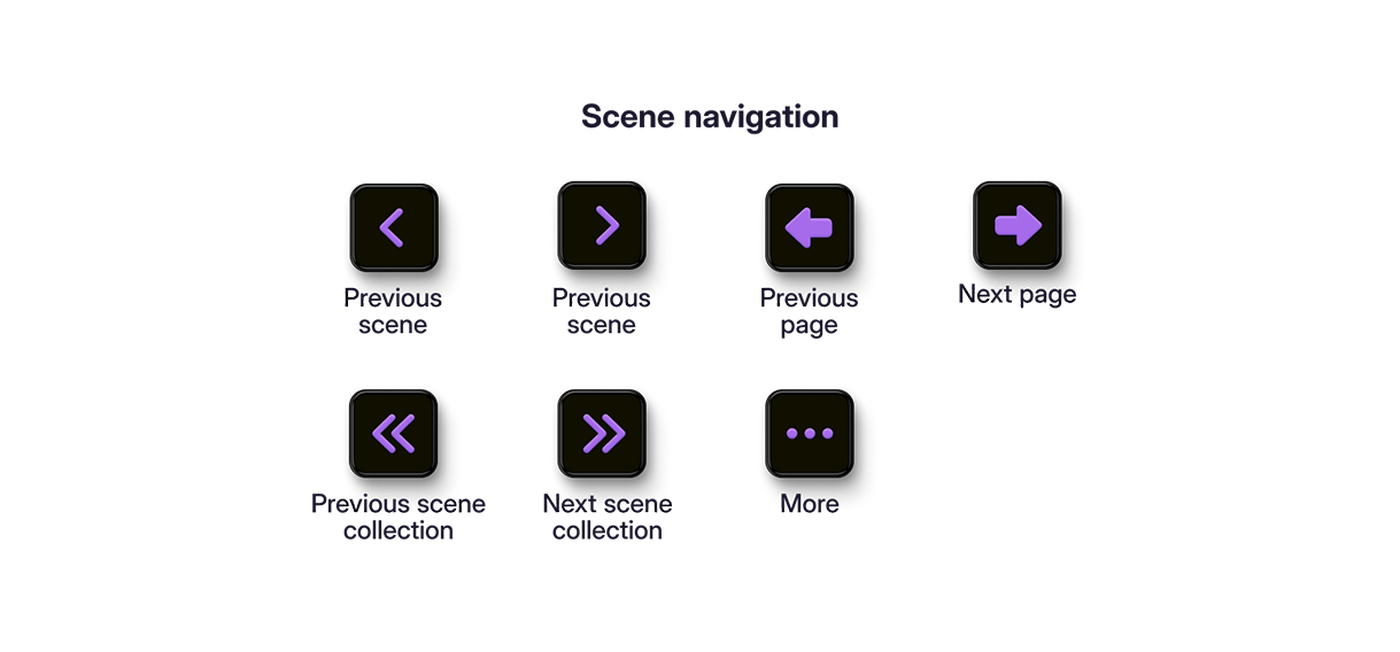
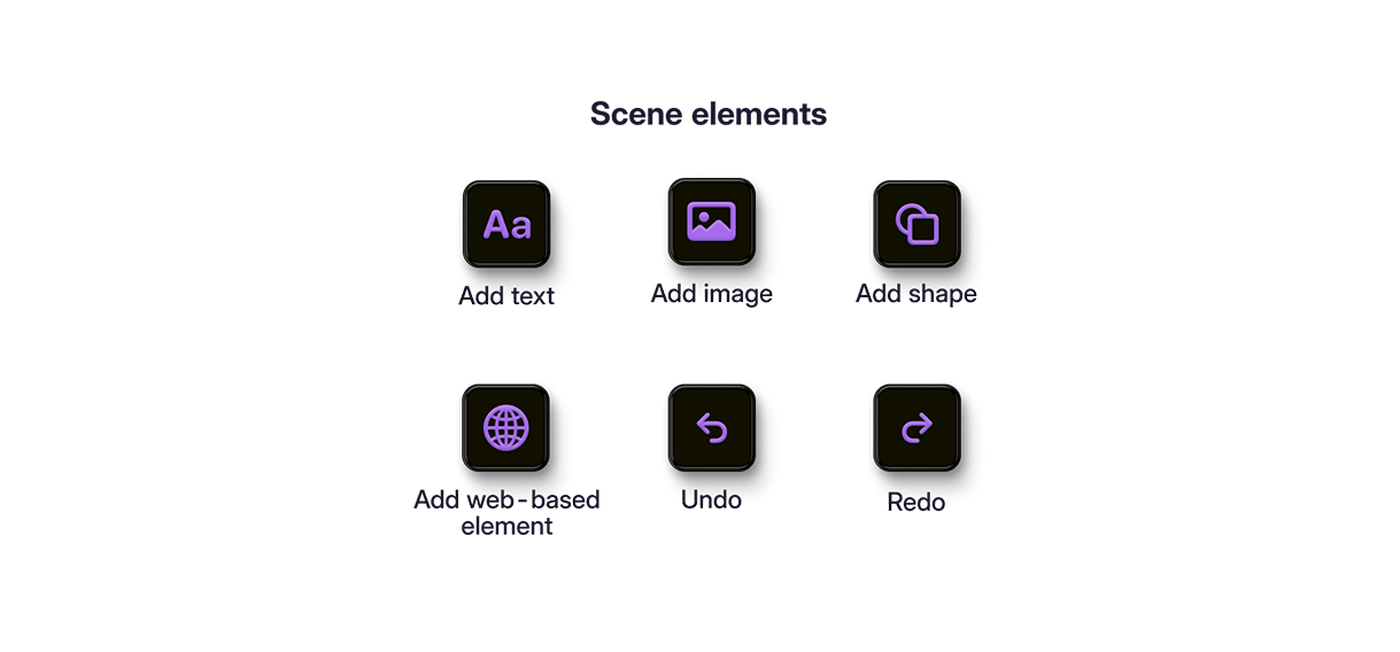
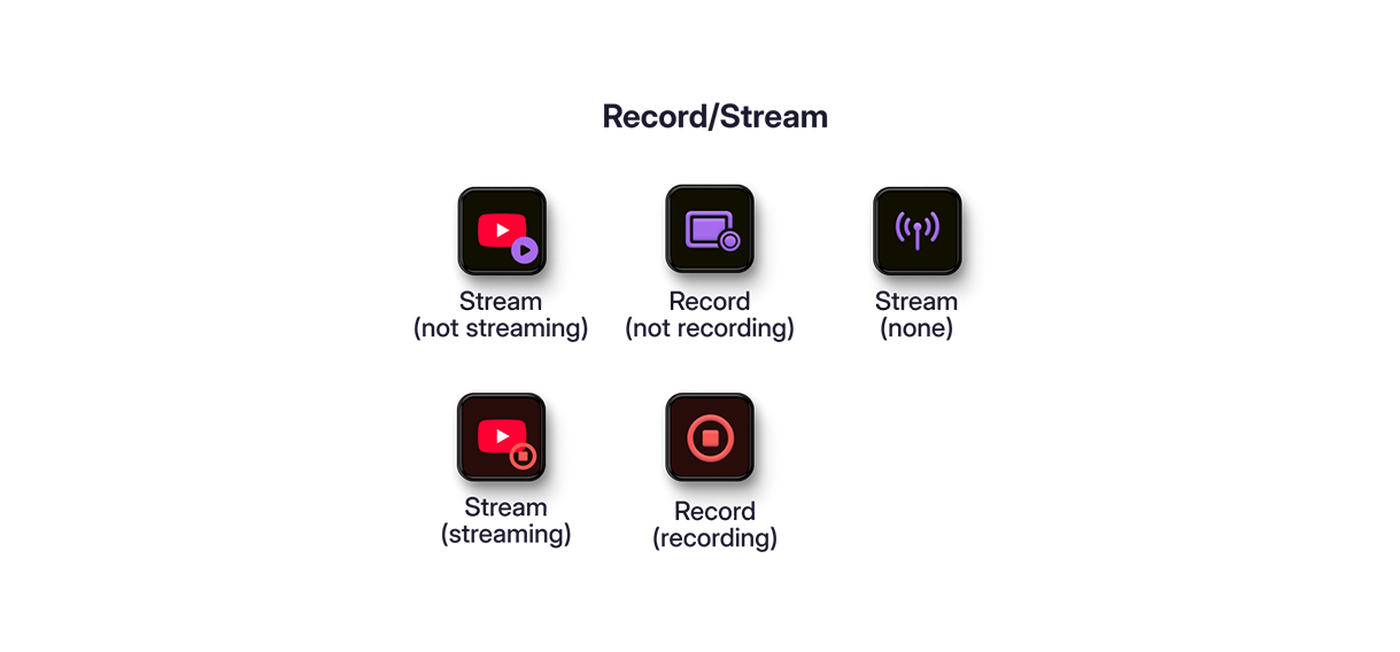
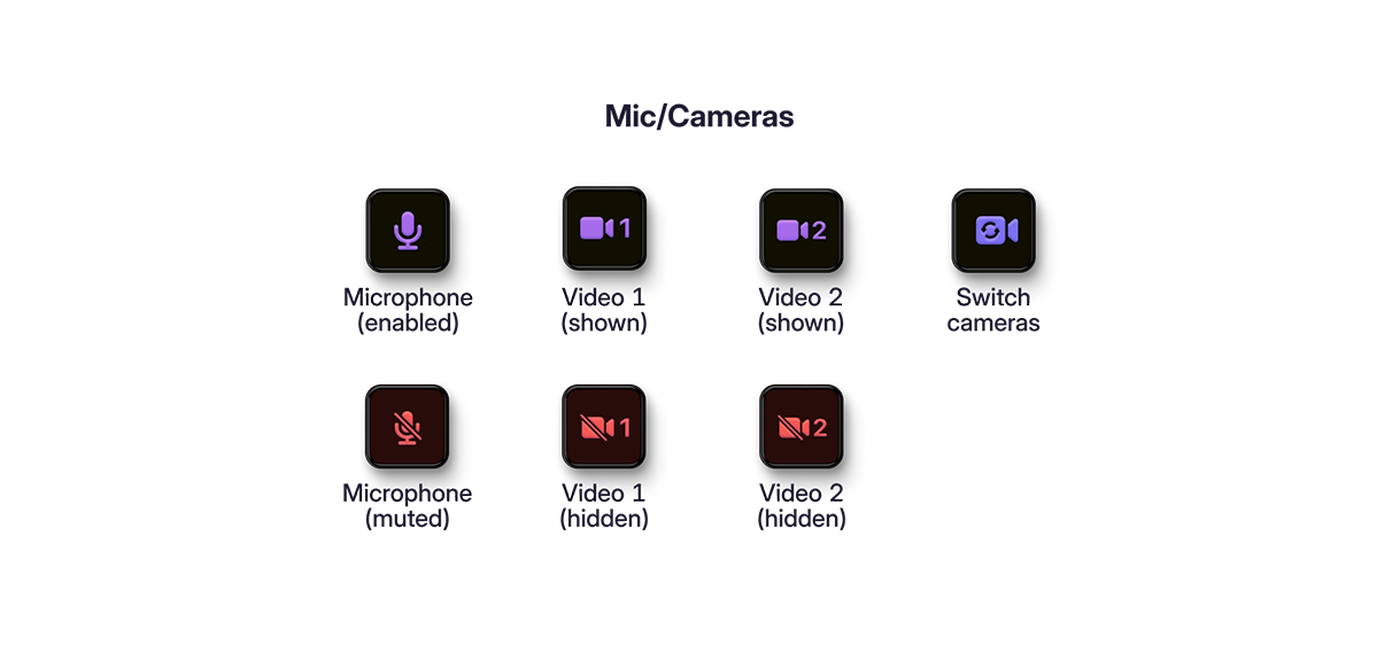
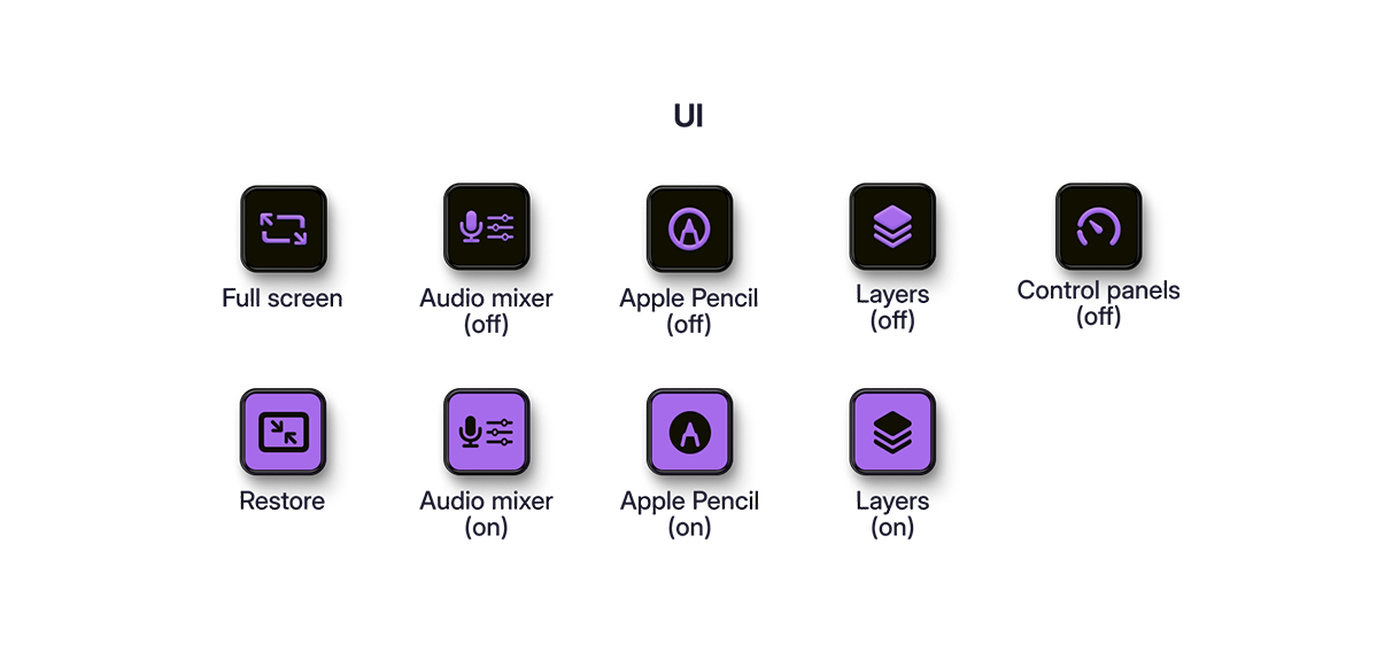
주요 구성
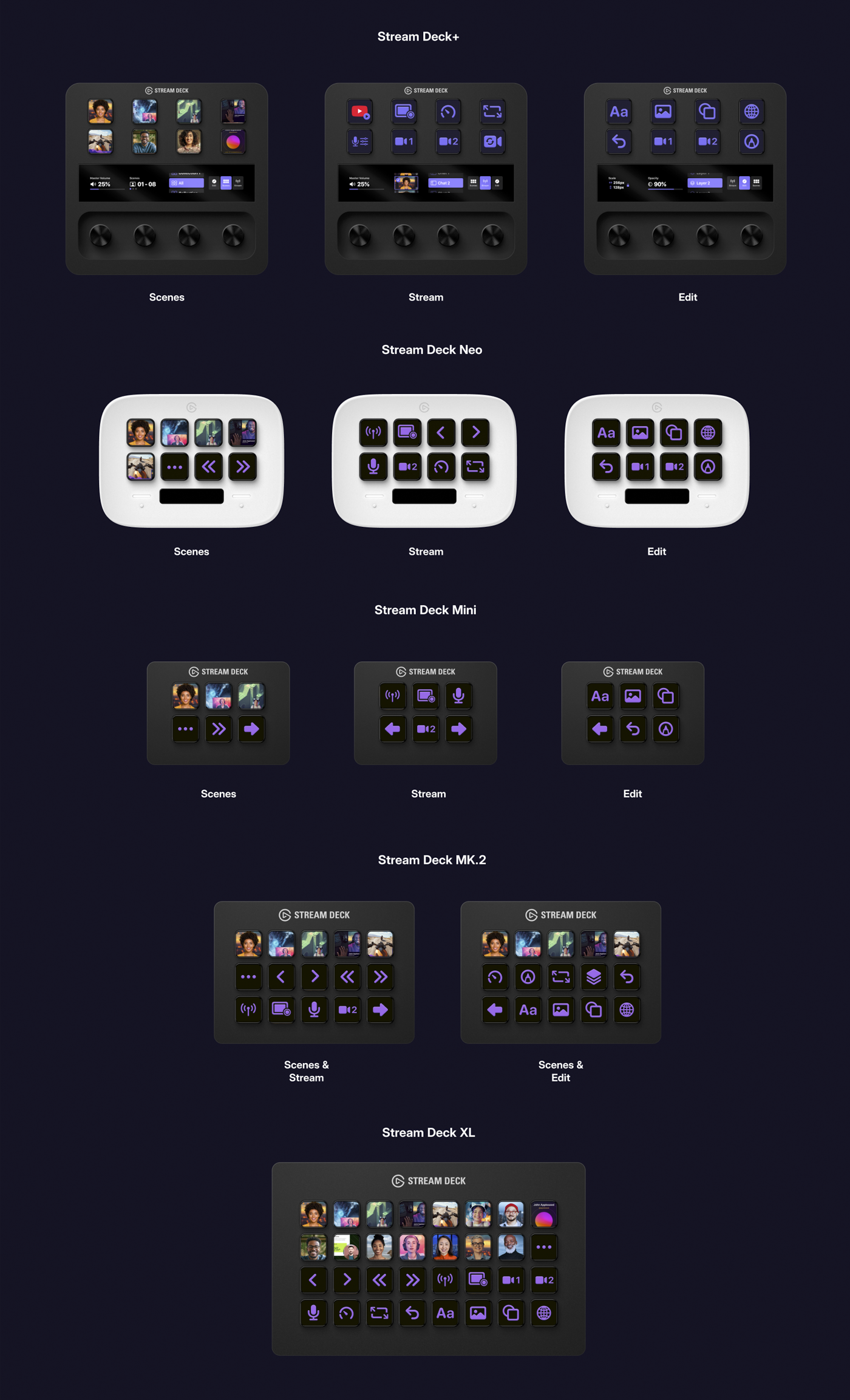
각 Stream Deck 모델은 키 레이아웃이 다양하기 때문에 자체적인 Camo 키 구성을 가지며, 레이아웃은 Camo Studio 워크플로의 주요 요소(장면, 스트리밍/녹화, 편집)에 따라 그룹화됩니다. Stream Deck XL은 32개의 키를 제공하여 세 가지 범주를 동시에 처리할 수 있지만, 다른 모델에서 레이아웃을 탐색하는 방법은 다음과 같습니다.
- Stream Deck+: 오른쪽 손잡이
- Neo: 정보 표시줄 양쪽의 터치 포인트
- Mini 및 MK.2: 큰 좌우 화살표 키
장면 썸네일
When you connect your Stream Deck, a thumbnail for each of your scenes will appear in your Scene key configuration. Scenes in the Explore Scenes will not auto update, but others that you edit or create will, using an image generated every 60 seconds from the content in the centre of the frame (imported scenes will retain their existing thumbnail behavior).
좀 더 맞춤화된 기능을 원하시면, 장면 키가 원하는 대로 보이도록 직접 썸네일을 만들 수 있습니다. 자세한 방법은 영상을 시청하세요.