将 Elgato 的 Stream Deck 与 Camo Studio for iPad 结合使用
无论您拥有 Neo、Stream Deck+ 还是其他型号,您都可以将 Stream Deck 连接到 Camo,并利用即时按键布局,涵盖 Camo 工作流程的各个环节,从创建和切换场景到调整音频、切换视频源、进行直播等等。Elgato 对 Stream Deck 集成的最低要求是运行 iPadOS 17 并搭载 M1 或更高版本的芯片。
启用 Stream Deck 集成
将 Stream Deck 连接到 iPad
Stream Deck 连接到 iPad 的方式与连接相机或麦克风完全相同——可以直接连接到其 USB-C 端口,或者如果您要连接多个设备,则可以通过 USB 集线器连接。为了获得最佳效果,请使用我们推荐的带电源型号之一。一旦您的 Stream Deck 连接并准备就绪,Camo 将自动为其配置视频工作流程各个部分(从构建场景到录制或直播)中最实用的命令。
迷彩钥匙
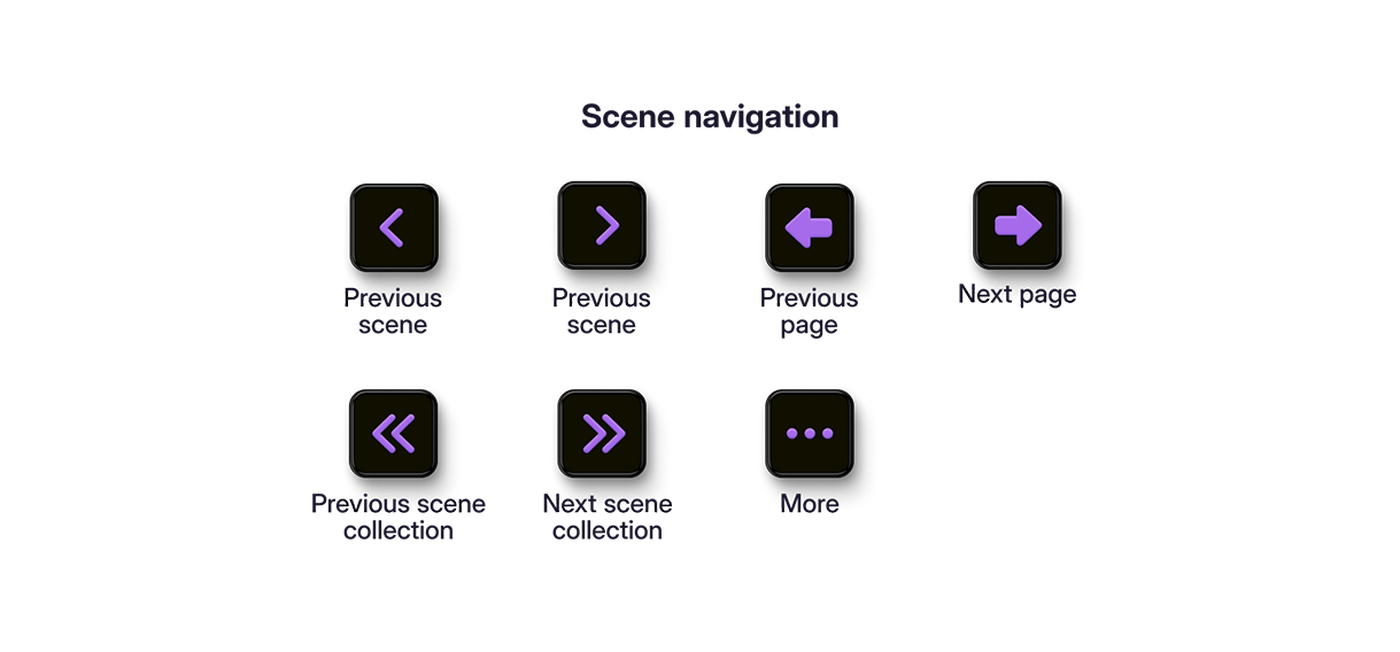
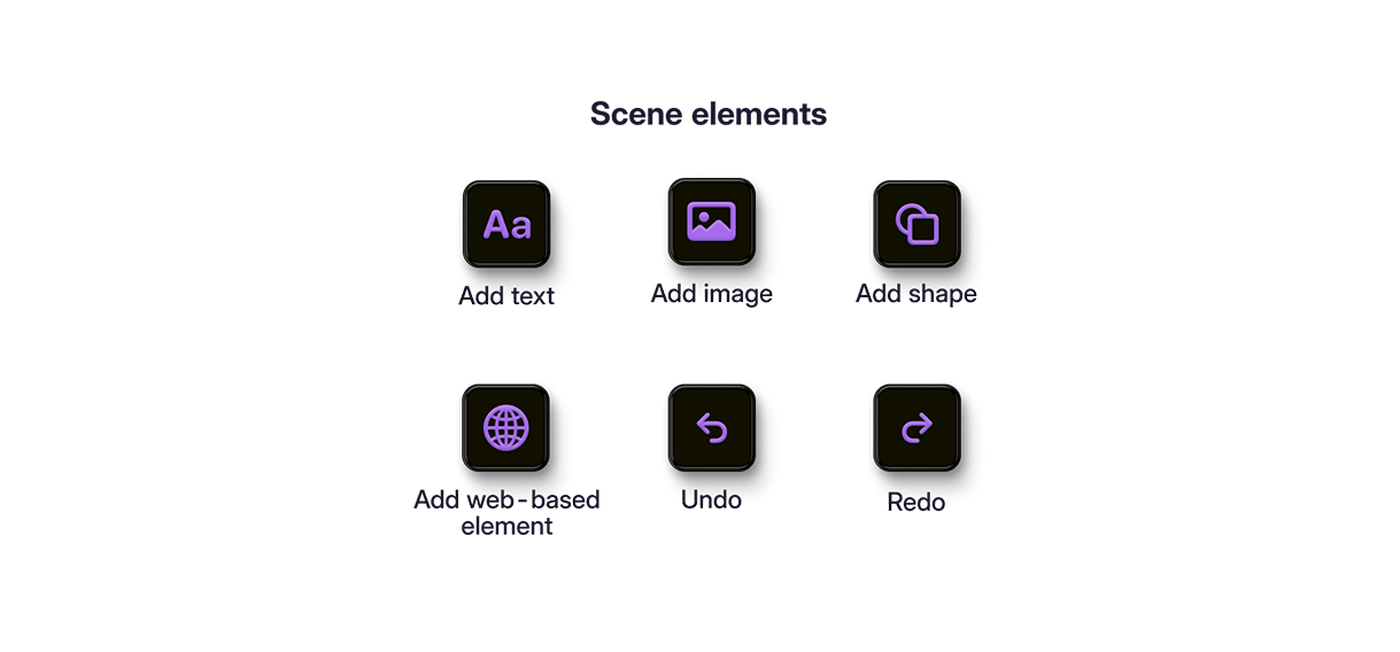
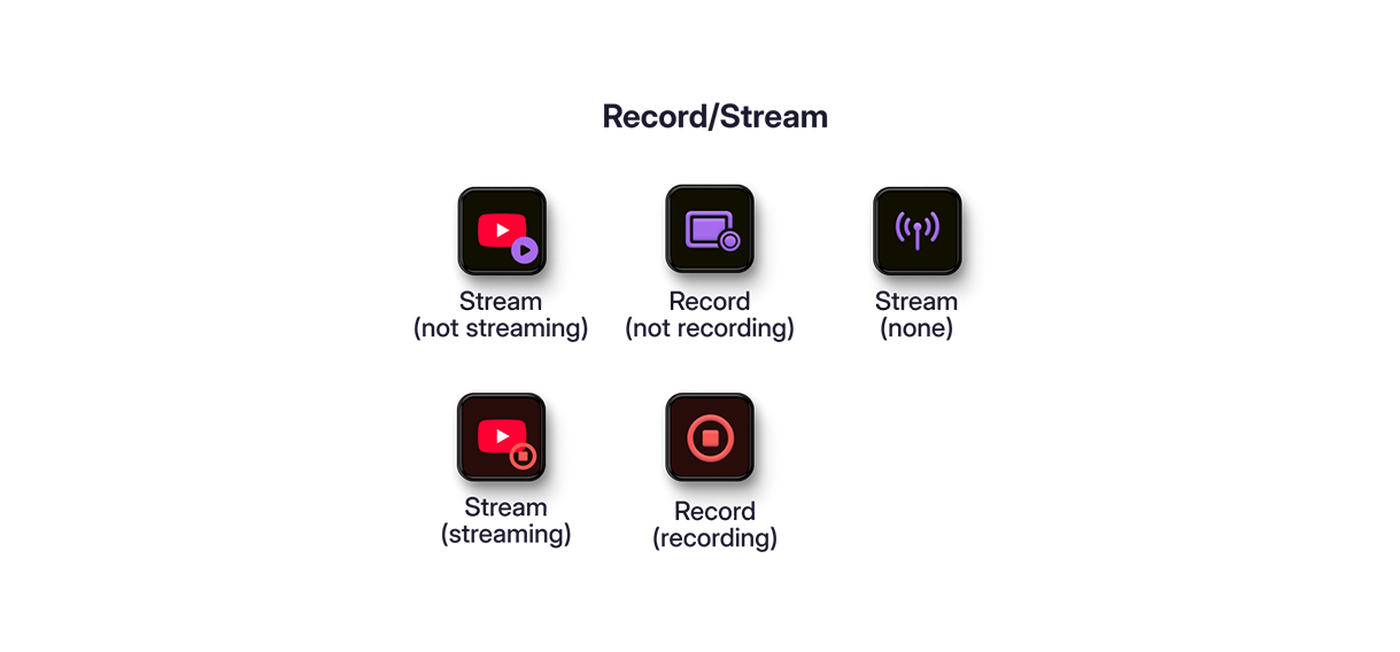
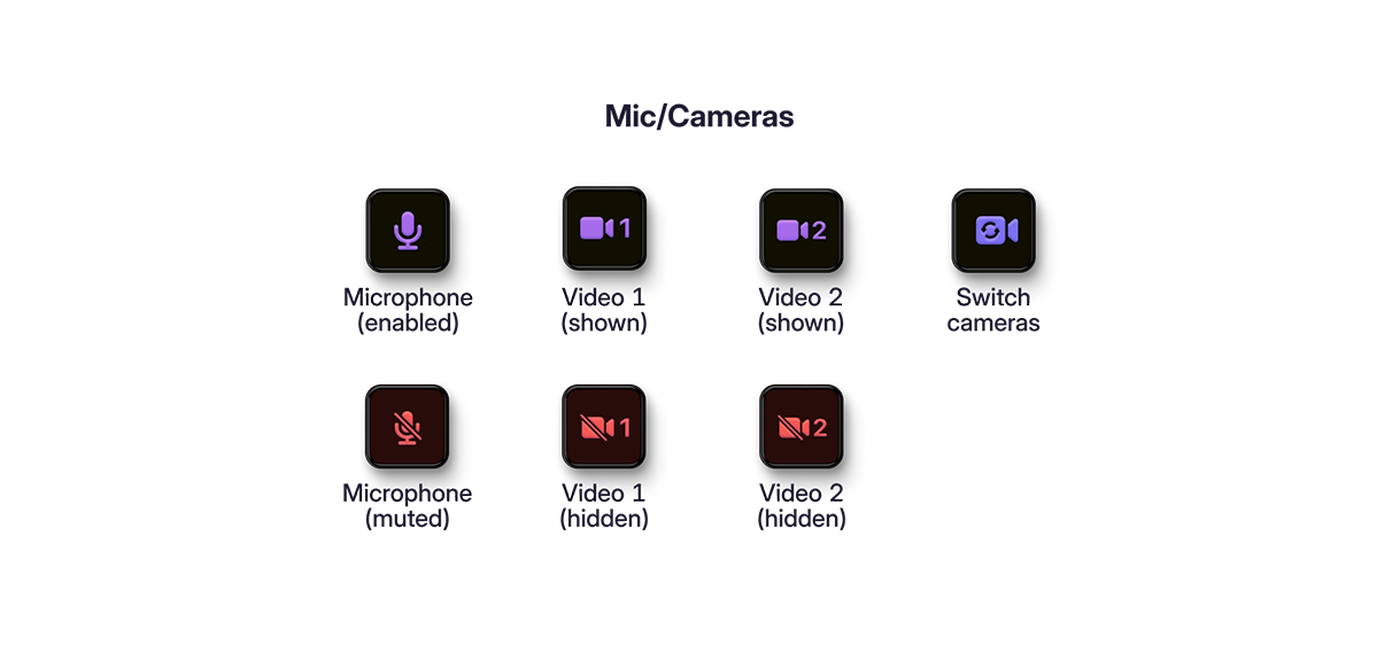
When Camo Studio is open and your Stream Deck is connected, the keys will populate with a selection of Camo actions. One category of actions are scene thumbnails, designed to make each of your scenes recognisable at a glance by auto-updating every 60 seconds using the content in its centre. If you want to have more control over this, scene thumbnail customisation takes just a few steps. The second category consists of Camo actions that correspond to the same icons found on your iPad's Camo Studio interface. These are grouped together by function:
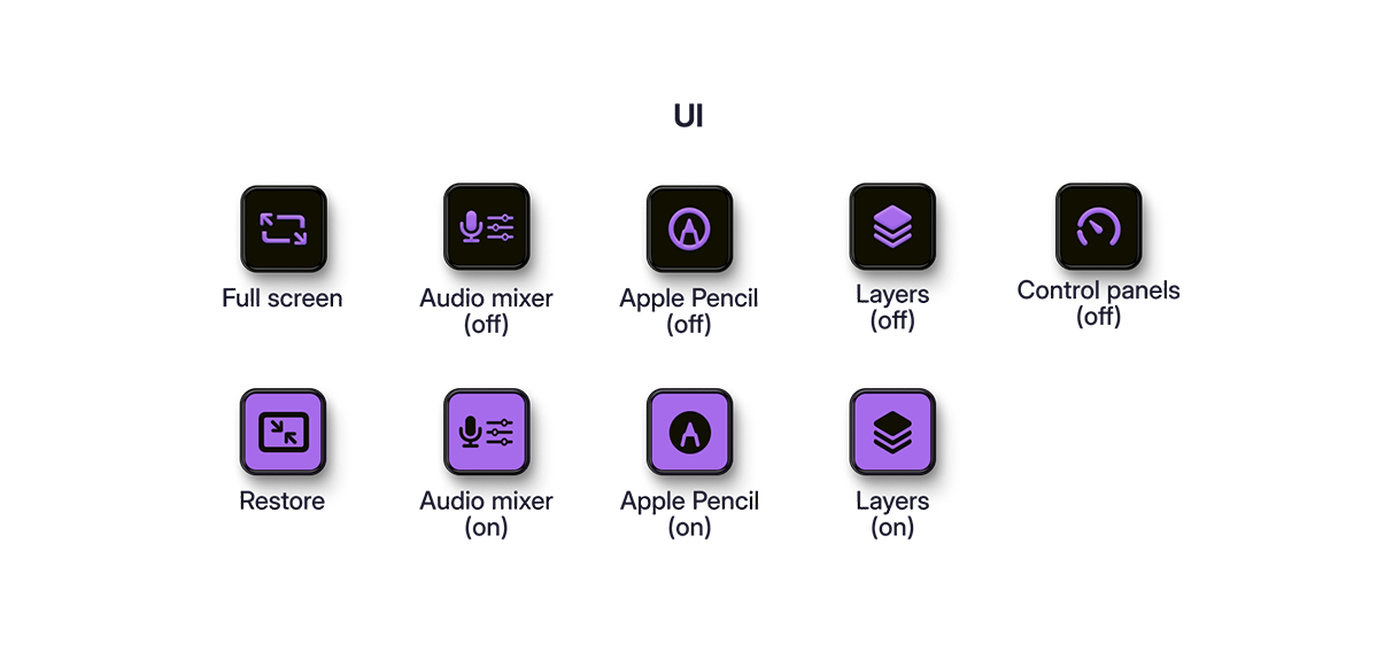
关键配置
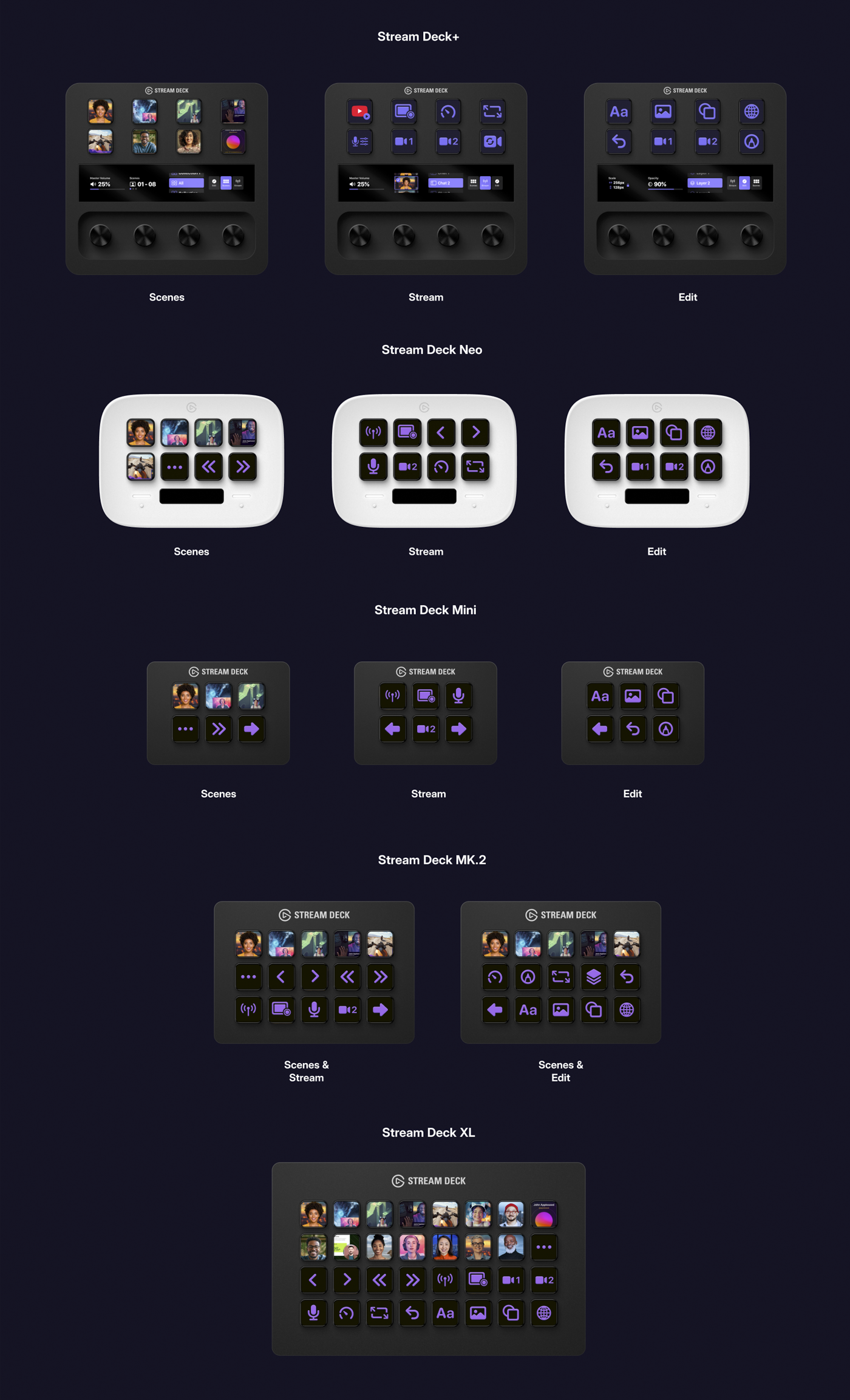
由于按键布局各异,每款 Stream Deck 型号都有各自的 Camo 按键配置,布局根据 Camo Studio 工作流程的主要元素进行分组:场景、直播/录制和编辑。Stream Deck XL 拥有 32 个按键,可同时容纳所有三个类别,但以下是其他型号布局之间的导航方法:
- Stream Deck+:右侧旋钮
- Neo:信息栏两侧的触点
- Mini 和 MK.2:大左右箭头键
场景缩略图
When you connect your Stream Deck, a thumbnail for each of your scenes will appear in your Scene key configuration. Scenes in the Explore Scenes will not auto update, but others that you edit or create will, using an image generated every 60 seconds from the content in the centre of the frame (imported scenes will retain their existing thumbnail behavior).
如果您更喜欢个性化设置,可以创建自己的缩略图,让您的场景键完全按照您的意愿显示。观看视频了解操作方法。